Published on December 17th, 2025
New in Sharetribe 🎉 Small improvements, big impact
We’ve made a ton of small improvements to Sharetribe over the past months. From end-user account deletion to previewing listing images in Console, these features improve both the admin and end-user experience.
We’ve released many big features to Sharetribe in 2025: price negotiation, fixed booking slots, seats... But we’re always improving Sharetribe in smaller ways too. And sometimes, small improvements can be just as impactful as big features.
So to close out the year, here’s a newsletter that combines all the small improvements we’ve released in the past months. Read on to learn more.
End-users can now delete their marketplace account
You no longer need to manually delete users through Console. Instead, your users can do it themselves.
This feature makes the user experience smoother, both for you as the marketplace admin and your providers and customers. When someone decides it’s time to delete their account, they can do so through the new Manage account tab under account settings.
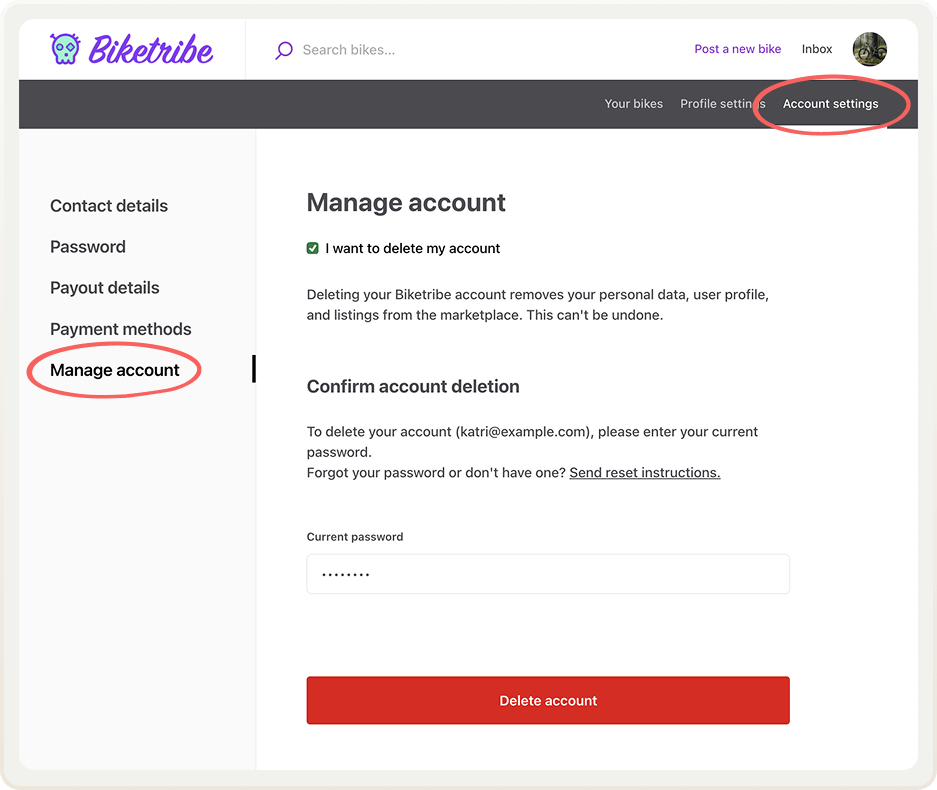
When an account is deleted, the user’s personal data, profile, listings, and connected Stripe data are permanently removed. Their reviews and messages remain but will be anonymized.
There’s a safeguard in place for ongoing monetary transactions: if the user has ongoing transactions, they can’t delete their account until payments and payouts are completed.
This feature is automatically available in all no-code Sharetribe marketplaces. If you want to update the copy, find the new marketplace texts here.
Delete Stripe connected account through Console
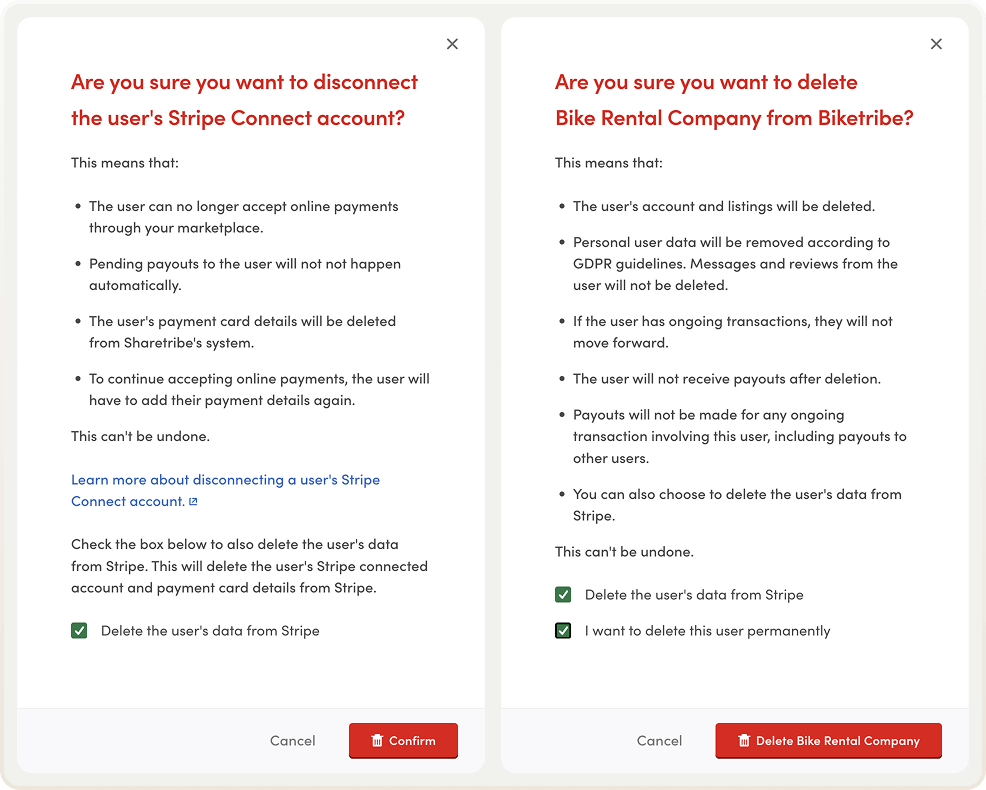
Here’s another feature related to user data deletion: as admin, you can now choose to delete a user’s data from Stripe while deleting their account or disconnecting their Stripe account in Console.
This means the user’s data has been fully deleted (and 100% GDPR-compliant).
Same as with end-user deletion, there’s a safeguard in place for ongoing transactions: if a user has any, you can’t delete the account and Stripe data. You’ll need to wait for payments and payouts to complete.
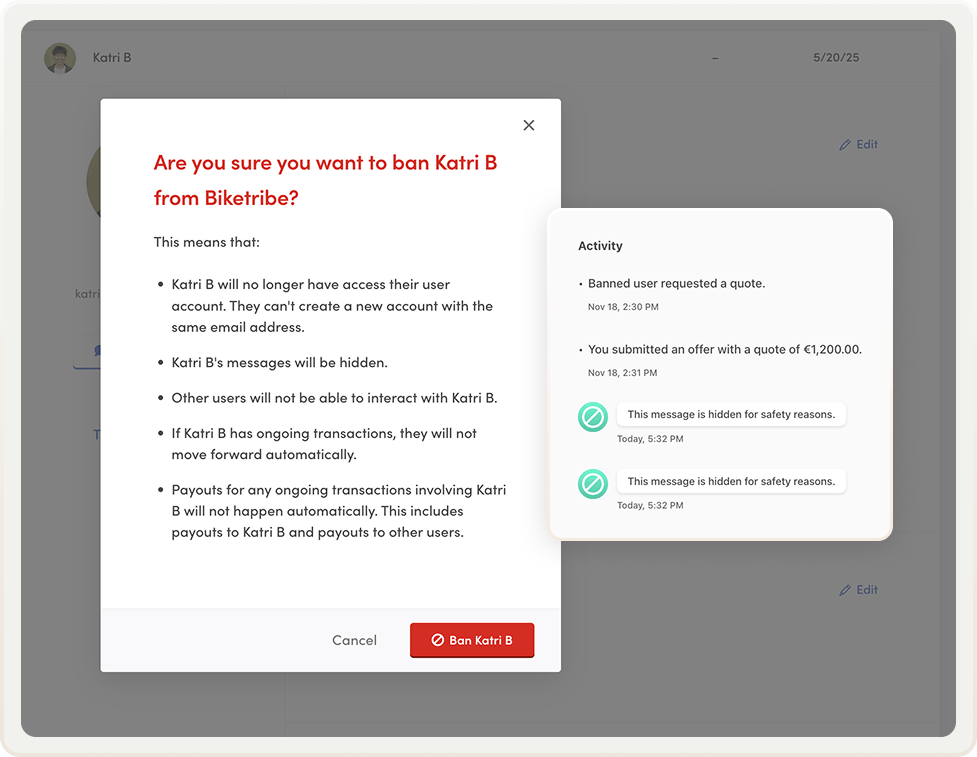
Messages from banned users are hidden
When you ban a user from your marketplace, they no longer have access to their user account. They can’t create a new account under the same email, and their transactions won’t move forward.
Our most recent update is an additional security measure: messages sent by banned users will not be shown to other users. Instead will be replaced with a default message “This message is hidden for safety reasons.” This is also a new, editable marketplace text.
Please note that banned users’ messages are automatically hidden for hosted Sharetribe marketplaces only. To take this feature into use on a self-hosted Sharetribe marketplace, please update your template to the latest release.
Inbox sorting
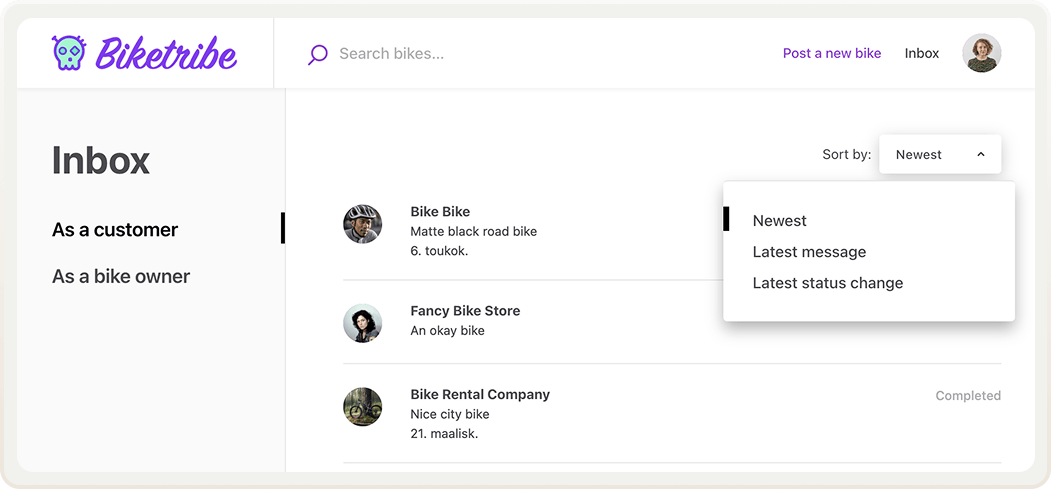
Users of Sharetribe-powered marketplaces can now sort items in their inbox by newest transaction, latest message, and latest status change.
These sorting options make navigating the inbox easier, especially for sellers who want to have a quick view of new orders or recent activity.
Hide the link to post a new listing
You can hide the link to post listings from users who aren't logged in in top bar settings.
In other words, when this setting is disabled, only logged-in users will see the link. You can modify who sees the link even further in user type settings.
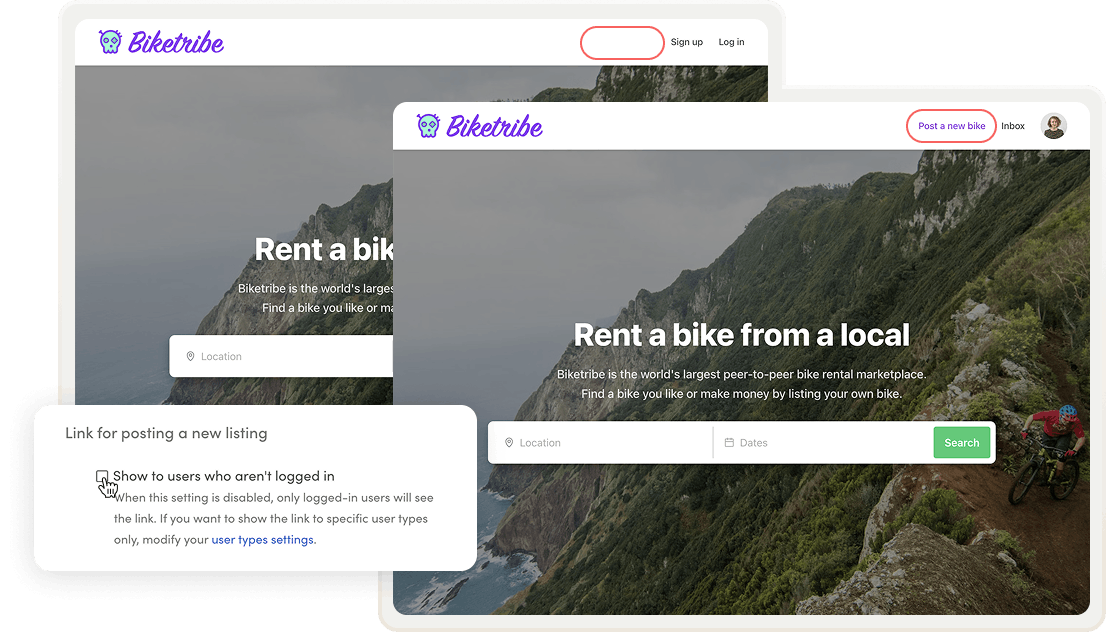
Tip! You can hide the link to post new listings from different user types as well. In user type settings, you can toggle off the user account link “Post and manage listings”. Any user in that user type will not be able to see the link anywhere in the UI. This is especially relevant for B2C and B2B marketplaces, where the supply and demand experiences need to be very different.
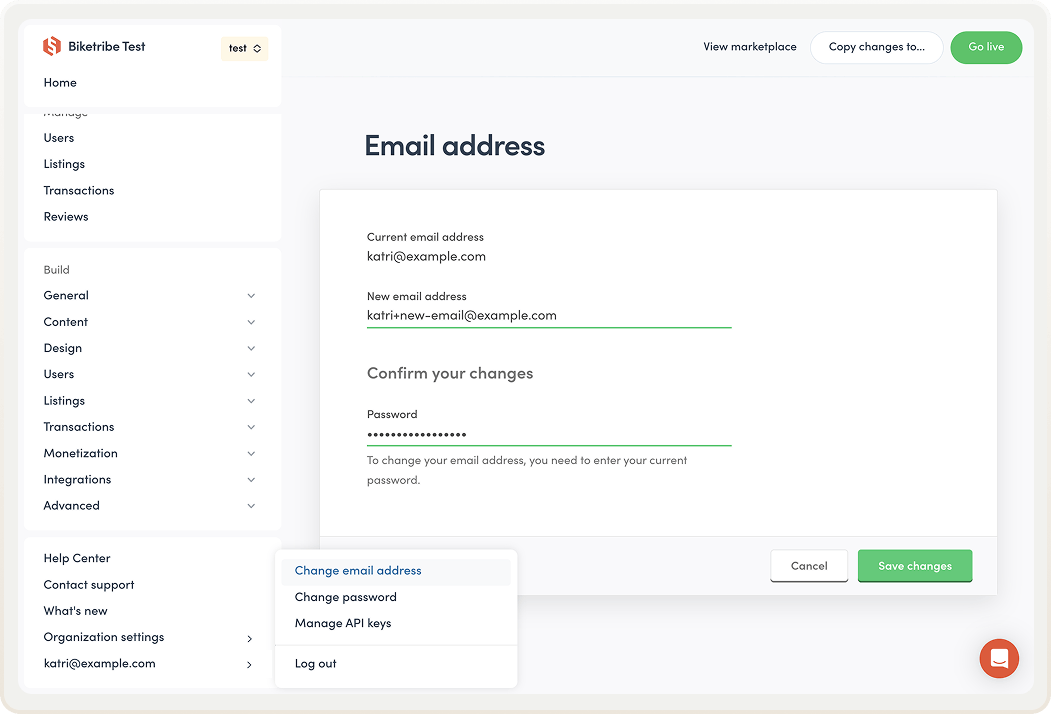
Change email address in Console
You can now change your Console account email address in Console. Open the menu by clicking on your email at the bottom-left corner of Console, and click “Change email address”.
Please note that this setting is about your personal admin email. You can edit your outgoing email address in the general settings, like before.
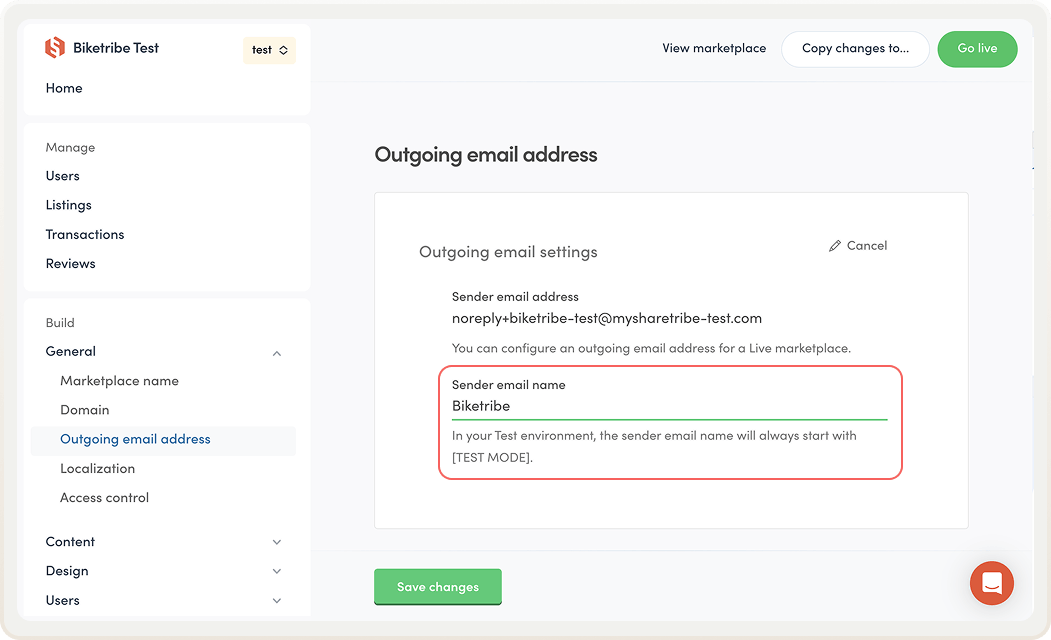
Change email sender name in Test and Dev environments
You can now update the email sender name for your outgoing email address in your Test and Dev environments.
Please note that the Test and Dev environment email sender name can't be copied over to your Live environment through the "Copy changes to..." workflow. You'll need to update the sender name separately in your Live environment settings.
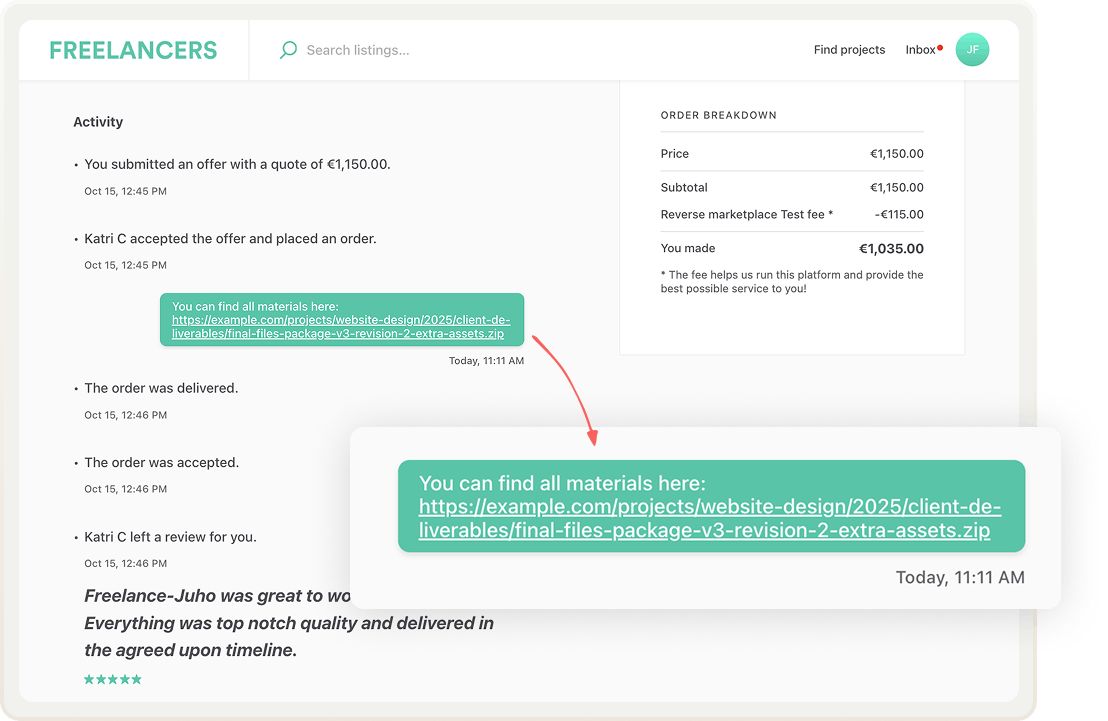
Display long links better in messages
This is a minor improvement from last spring that’s especially important for marketplaces where people share URLs in transaction conversations. Long URLs are now displayed in a more screen-friendly way in message conversations.
Preview listing images in Console
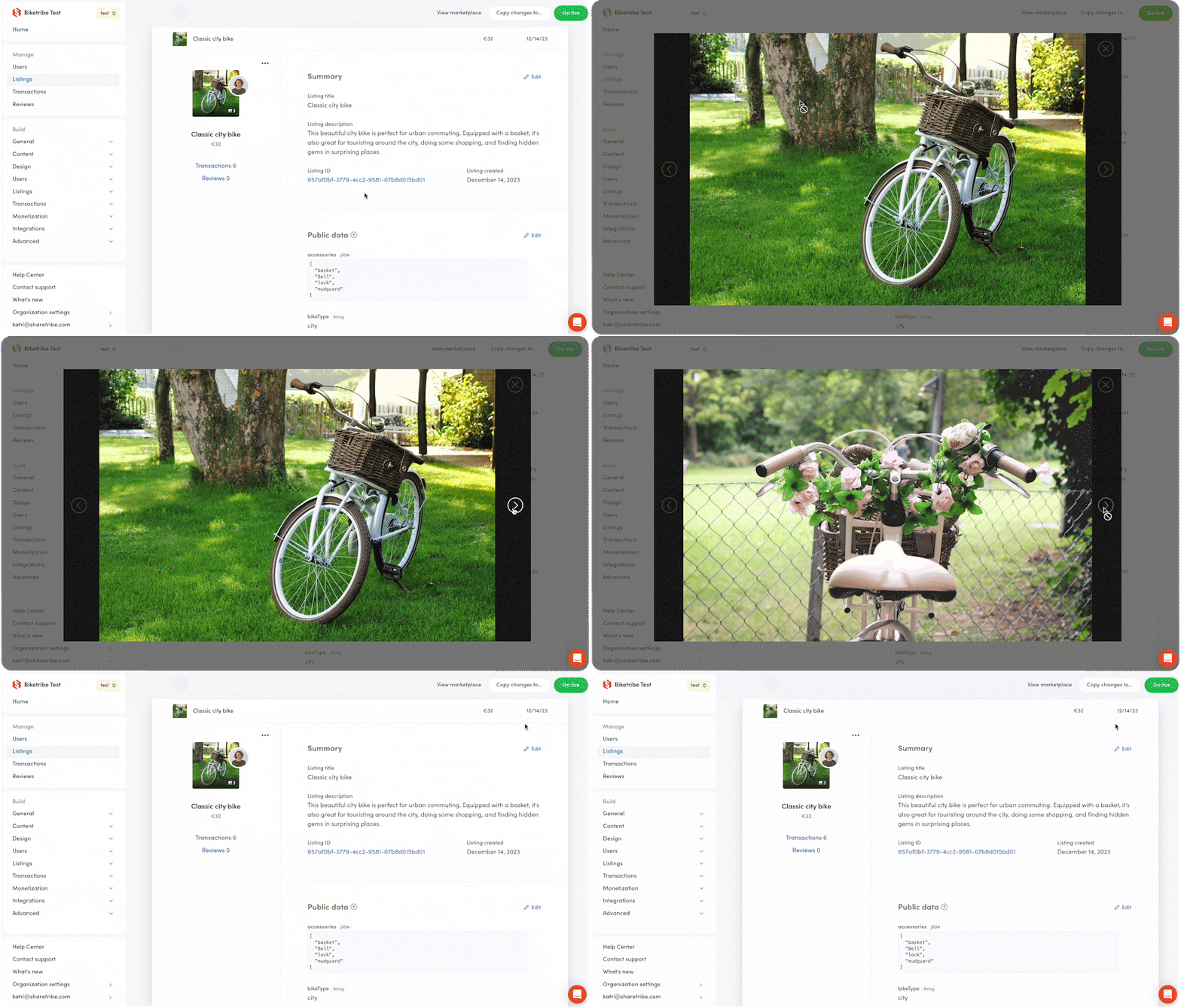
You can now preview listing images in Console, without having to go view the listing page on your marketplace.
Just click on the main image in a listing card on the listing management page, and you can easily scroll through all images that the seller has added.
Log into Console to see these new features and improvements in action—along with all other new features. Find the full list in Sharetribe’s changelog.
What would you like to see added to Sharetribe? Let us know—we often choose features to build that are among the most requested.
Happy holidays from the whole Sharetribe team!
Start your 14-day free trial
Create a marketplace today!
- Launch quickly, without coding
- Extend infinitely
- Scale to any size
No credit card required