Set an image upload limit and other image optimizations
Shipped on
Set a maximum number of images per listing in Console, without coding. Most images now load only when someone views them. Common AI training bots are asked not to crawl your marketplace.
With Sharetribe’s new pricing, your monthly usage costs depend on how much your marketplace uses Sharetribe’s APIs and infrastructure. Images can make up a large share of a marketplace’s usage, so we’ve made several updates to help you keep it in check.
On Sharetribe-hosted marketplaces, the updates already apply. There’s also a new setting to limit image uploads that you can turn on in Console. If you’ve customized your marketplace with code, you can update your template to get these updates. Developer Advocate Sari also wrote a great guide on optimizing credit usage for the Sharetribe Developer Blog.
Read on to see what’s changed and how it helps lower your usage.
New feature: Limit the number of images per listing
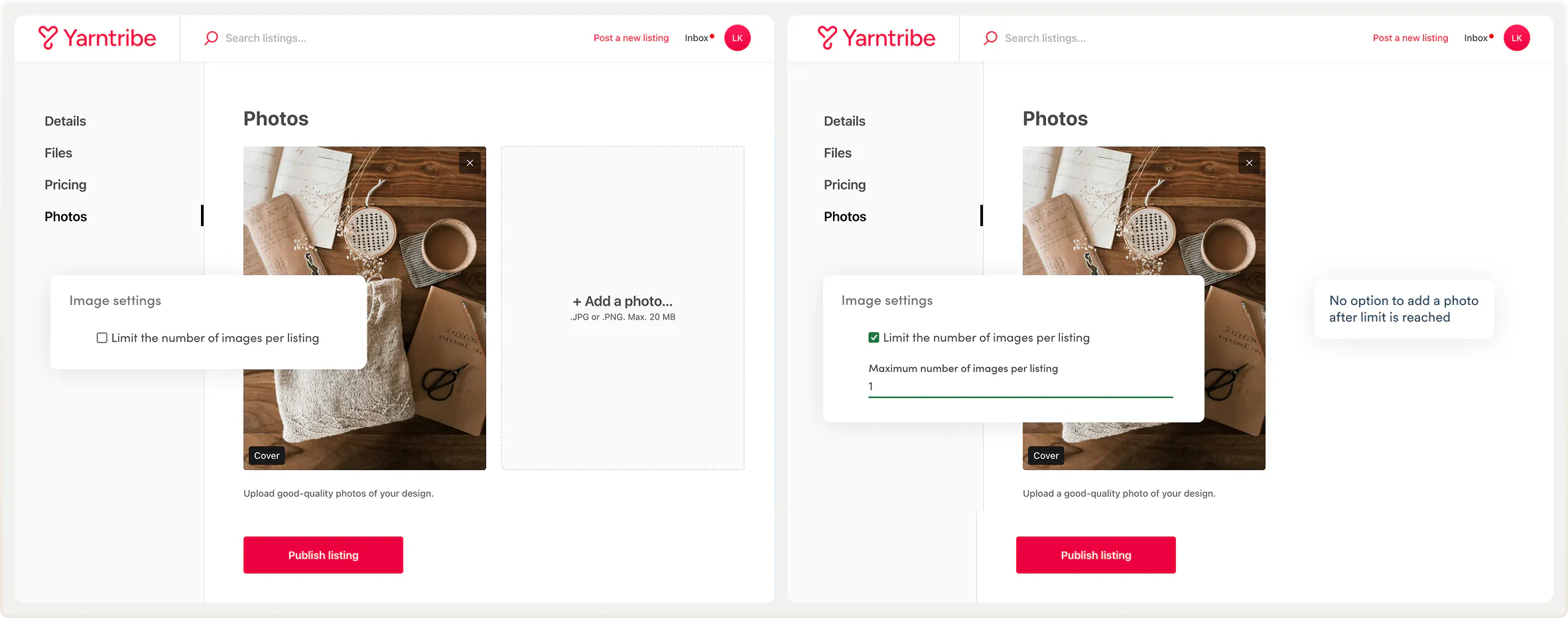
We’ve added a new image setting that helps you control the number of image uploads.
You can define a maximum number of images that can be added to a listing. Often, images beyond the first 3-5 don’t add that much value. So, in addition to curbing credit usage, limiting the number of images can be a great way to nudge sellers to pick the best images instead of any images, making for higher quality listings altogether.
Find it in listing type settings, under default listing fields. By default, there’s no image limit, so you need to specify it yourself.
Lazy loading for images in the template
Your marketplace now loads most images only when a visitor needs to see them, instead of all at once. This lowers your usage and makes pages load faster for your users. Here’s where it applies:
- Search and user profile pages: Listing card images load only as users scroll.
- Listing pages: Only the first listing images load right away. The rest load when a user browses the gallery behind a cover photo or clicks through an image carousel.
- Content pages: Images below the first two sections of a page load only when someone scrolls down.
Limiting bot and crawler usage
Some bots crawl websites to collect data for AI training. They can add to your usage even though no real person ever sees the page. Your marketplace’s robots.txt file now disallows common AI training bots by default. Keep in mind that robots.txt is a request rather than a block. Most well-behaved bots follow it, but it can’t force them to do so.
If you’re customizing with code, you can update your robots.txt file yourself. You can add more bots to the robots.txt file or even block them at the server level if they’re not relevant to your marketplace.
More on how to optimize usage
Sari’s guide covers more ways to reduce usage on a custom marketplace. You can also check your current usage in Console, or lower your price per credit with an annual credit commitment.
The quickest thing you can do: set an image limit in Console and try it in your test environment. If you’ve customized your marketplace with code, you can choose and implement the relevant changes. All pull requests are included in Sari’s article.
Stay tuned for more usage-related updates: we’re working a usage-tracking page and some notifications you can set to keep track of usage.
And a quick note: if you started your subscription before October 1st, 2026, and haven't made updates to your plan, new usage pricing will apply from December usage onwards.
Start your 14-day free trial
Create a marketplace today!
- Launch quickly, without coding
- Extend infinitely
- Scale to any size
No credit card required