Published on February 25th, 2026
New in Sharetribe 🎉 Ask for unique data during transactions
When your customers and providers need to communicate complex requirements, asking them for the right information at the beginning of a transaction can make a huge difference. Now, you can use transaction fields to ask for the most relevant info in a structured way.
When your customers and providers need to communicate complex requirements, asking them for the right information at the beginning of a transaction can make a huge difference.
Until now, collecting this information meant relying on messaging. Now, you can use transaction fields to ask for the most relevant info in a structured way. Such as:
- Project scope and timeline for freelance quote requests
- Dietary restrictions for dinner events
- Skill level for tutoring
- Personalization details for custom product purchases
- Number of guests for venue inquiries
Transaction fields can be useful for any type of transaction—we’ll share some examples and ideas later.
So, let’s dive into transaction fields: how to create them, how they work for your users, and how you can use them on your marketplace.
How to create transaction fields
You can find transaction fields in the listing type settings. Listing types is the feature that determines the types of listings people create and the kind of transactions that take place on your marketplace. Transaction fields are always connected to a specific listing type.
Here’s how to create a transaction field, step by step.
- Navigate to listing type settings. (Console → Listings → Listing types)
- Open a listing type or create a new one.
- Scroll down to the new section, Transaction fields.
- Click to add a new transaction field and configure it.
- Give the field a name and ID.
- Choose the field type (text, number, dropdown, checkbox, or video).
- Decide if it's mandatory or optional. If you make the field mandatory, users can’t move forward in a transaction until it’s filled in.
- Set additional options specific to the field type: dropdown or checkbox options, search settings, etc.
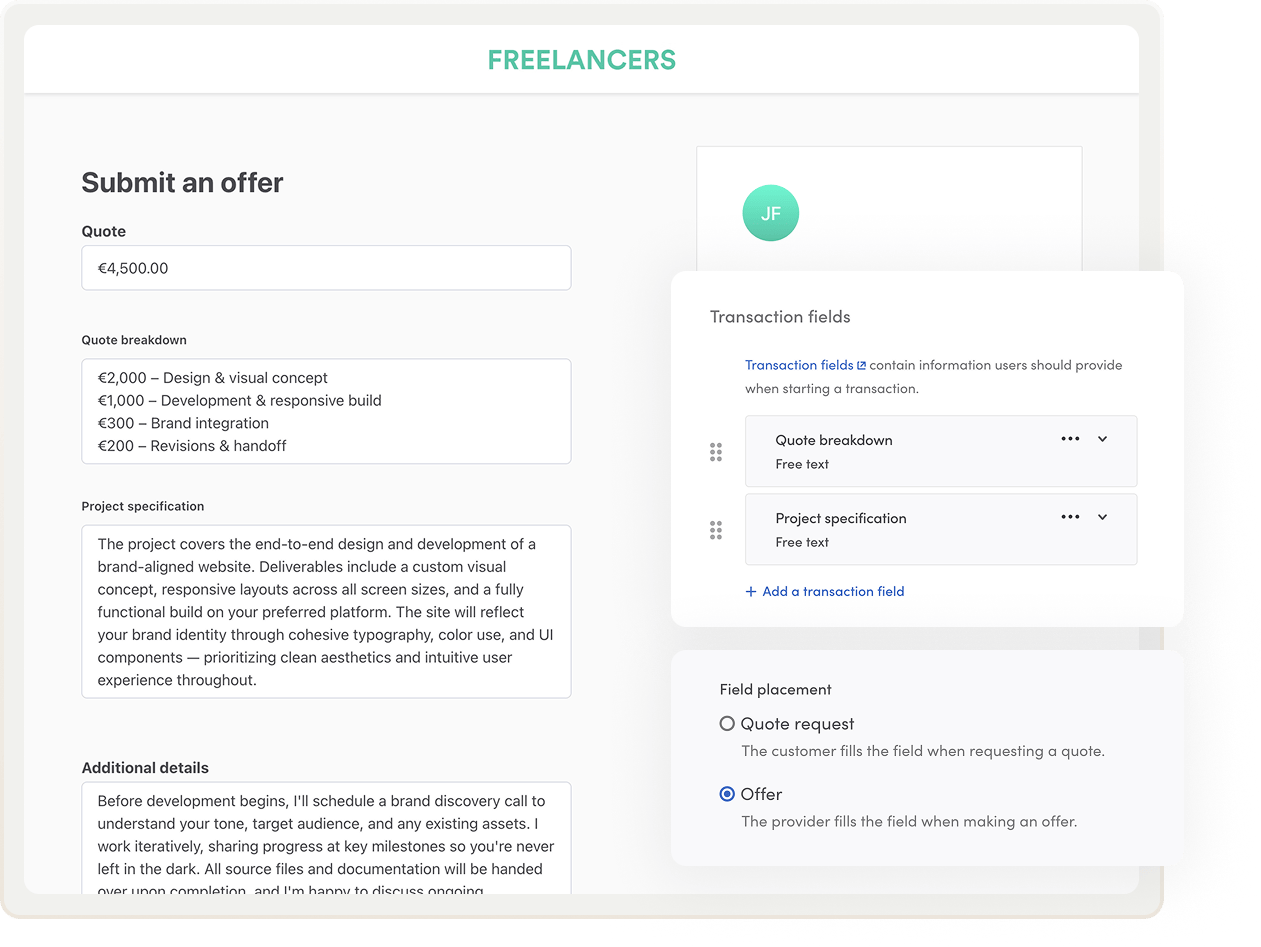
- (If your transaction process type is regular price negotiation) Choose when the field will be shown during the negotiation. Will the field be shown in the quote request (the customer fills the field when requesting a quote) or offer (the provider fills the field when making an offer)?
Then, save changes!
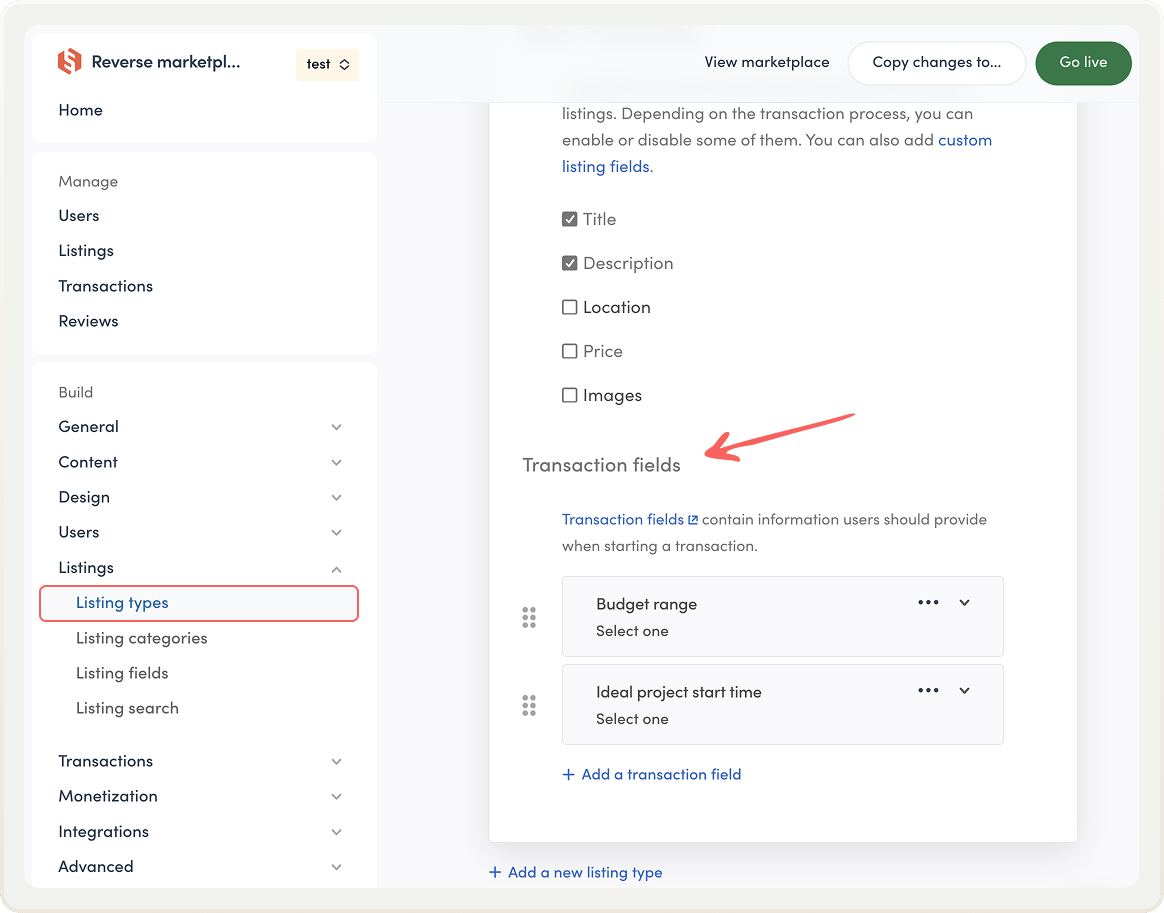
Add the transaction fields your users need to communicate and transact efficiently. Let’s take a closer look at the user experience next. 👇
How transaction fields work for users
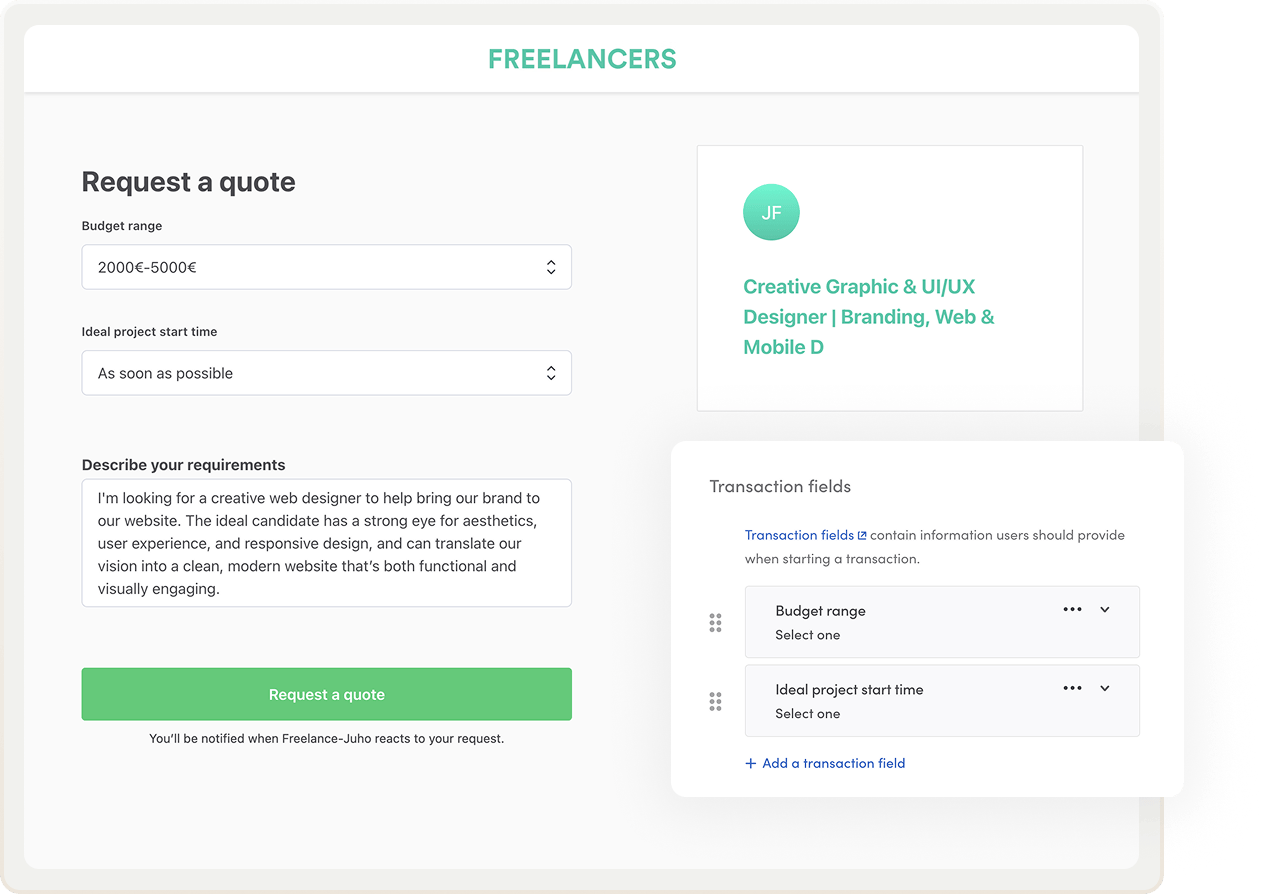
In a nutshell, when someone clicks to start a transaction, they will see the transaction fields first thing.
If you use regular price negotiation as your transaction type, you can also include transaction fields on the offer page and ask the provider to share additional details along with their quote.
If you add multiple transaction fields, their order will match the order of the fields in the listing type settings. The default “Additional details” field will always be the last field, and optional to fill.
How to use transaction fields
How you can use transaction fields depends on your marketplace. We’ve grouped the examples by transaction process type, so you can easily find ideas that are most relevant to you.
Price negotiation:
- Use transaction fields to structure customers’ quote requests so that they give providers enough information about their requirements upfront. For example, ask customers on a freelance marketplace to specify project scope and deadline.
- Make sure providers’ offers include the necessary details for customers to make an informed choice—such as availability and proposed timeline for consultants, or materials and warranty terms for contractors.
Free messaging: Use transaction fields to add structure to inquiries. Instead of users writing everything in messages, they can fill out specific fields, such as:
- preferred appointment times for consultations
- number of attendees for venue inquiries
- experience level for fitness coaching.
Calendar booking: Collect booking-specific details from customers, such as
- dietary restrictions for dinner events
- current skill level for tutoring
- vehicle dimensions for RV parking.
Purchase: Ask customers to share additional details in purchases, such as
- personalized text for custom products
- gift messages
- size and color for made-to-order items.
Important update for booking and purchase marketplaces
If your marketplace uses the calendar booking or purchase transaction process, this release changes how the "Additional details" field works:
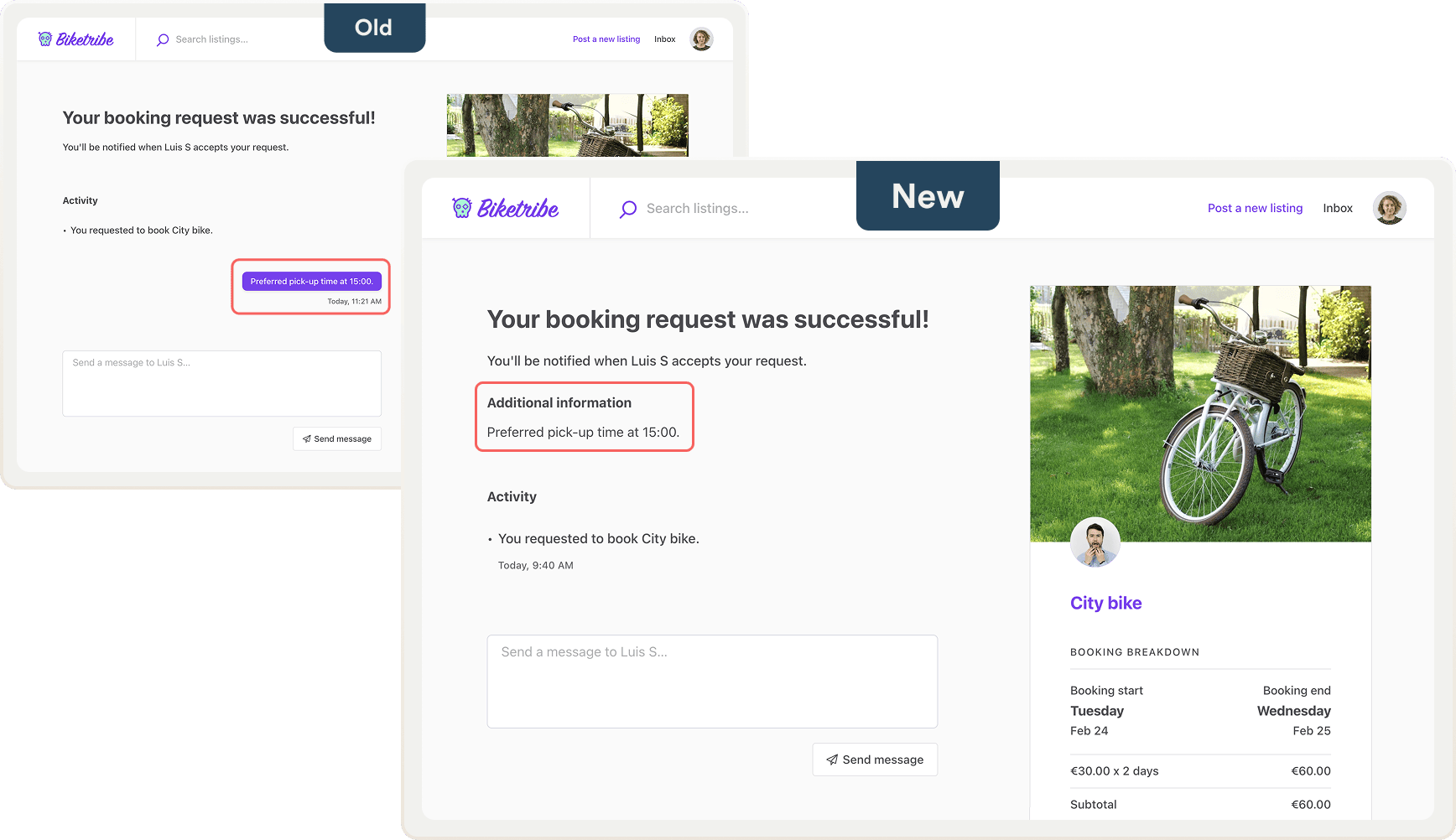
- Previously: Additional details were sent as a message. This triggered a separate email notification about the message in addition to the booking or purchase notification.
- Now: Additional details are saved as transaction data and displayed alongside other transaction fields on the transaction page.
What this means:
- If the customer fills the additional details field, the provider no longer gets two notifications—they only receive the booking confirmation. Please note that the booking or purchase confirmation email doesn’t include the additional details.
- The additional details appear in a different location on the transaction page. They’re in the transaction fields section with custom transaction fields, not in the message feed.
Update your marketplace texts
This release introduces new marketplace texts to Sharetribe. Copy the new marketplace texts below and paste them into your marketplace text editor (Console → Content → Marketplace texts).
"TransactionPage.detailsTitle": "Details",
"TransactionPanel.defaultMessageHeading": "Additional information",
"TransactionPage.detailNo": "No",
"TransactionPage.detailYes": "Yes",
You can also find the new marketplace texts in the help center.
Add structure to your transactions
With transaction fields, you can collect the right information at the right time and make transactions smoother for both customers and providers. Whether you're building a complex service marketplace or streamlining a booking flow, transaction fields help your users share the details that matter.
Head over to Console and start adding transaction fields to your listing types today!
Start your 14-day free trial
Create a marketplace today!
- Launch quickly, without coding
- Extend infinitely
- Scale to any size
No credit card required