Published on March 13th, 2026
New in Sharetribe 🎉 Featured listings
You can now add dynamic listing sections to any content page on your marketplace. Feature listings based on category, location, listing field data, and more. Display up to 10 matching listings per section that update automatically as your inventory changes.
The best landing pages don't just explain the marketplace concept—they show it by highlighting the supply. Featuring real listings on your landing page can be even more impactful than describing your marketplace in words. And they’re equally powerful in targeted content, SEO pages, and ad campaigns.
Until now, adding featured listings to a content page in Sharetribe required custom coding or manual workarounds. That changes today.
You can now add sections of listings to any content page: featuring your latest inventory, listings in a specific category or location, and much more. The listings in the section update dynamically as your inventory changes, so you only need to set the section up once.
How to add featured listings to a content page
Adding a featured listings section takes just a few steps in Pages, with extra steps if you want to feature a specific group of listings instead of your latest supply. Let’s take a look at how.
Add a Listings section in Pages
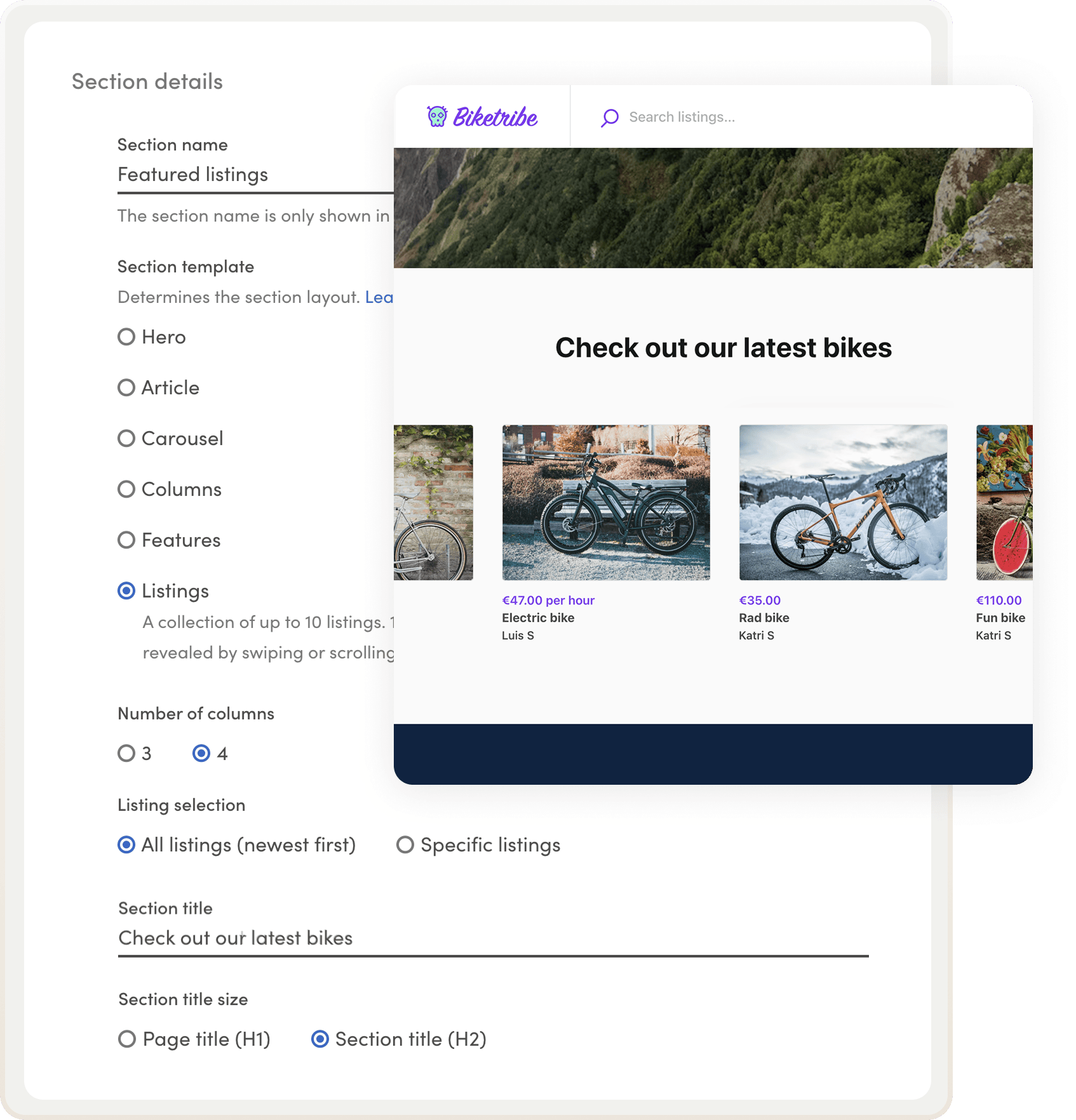
We start by creating a new type of section, Listings, to the content page of your choice.
1. Go to Pages and open the page where you want to add the section.
2. Click to add a new section and choose the section type Listings.
3. Choose the number of columns (how big the listing thumbnails will be).
4. Choose the listing selection:
- All listings: Feature the latest listings in your marketplace. The section updates as new listings are added.
- Specific listings: Feature listings that match a specific search query, such as listings in a certain category or price range. You can create search queries in listing management. You’ll learn how in the next section of this newsletter.
5. (Optional) Add further content to the section: title, description, and call to action.
6. Choose the section appearance and add an optional anchor link.
7. Save your changes.
When you copy the Test environment changes to your Live environment, the query will be brought over just like any other change. It will simply search for live listings on your live marketplace.
Get the search query for featuring specific listings
You can also feature a specific group of listings based on any public listing data. Any search filter in your marketplace can be used to automatically feature listings.
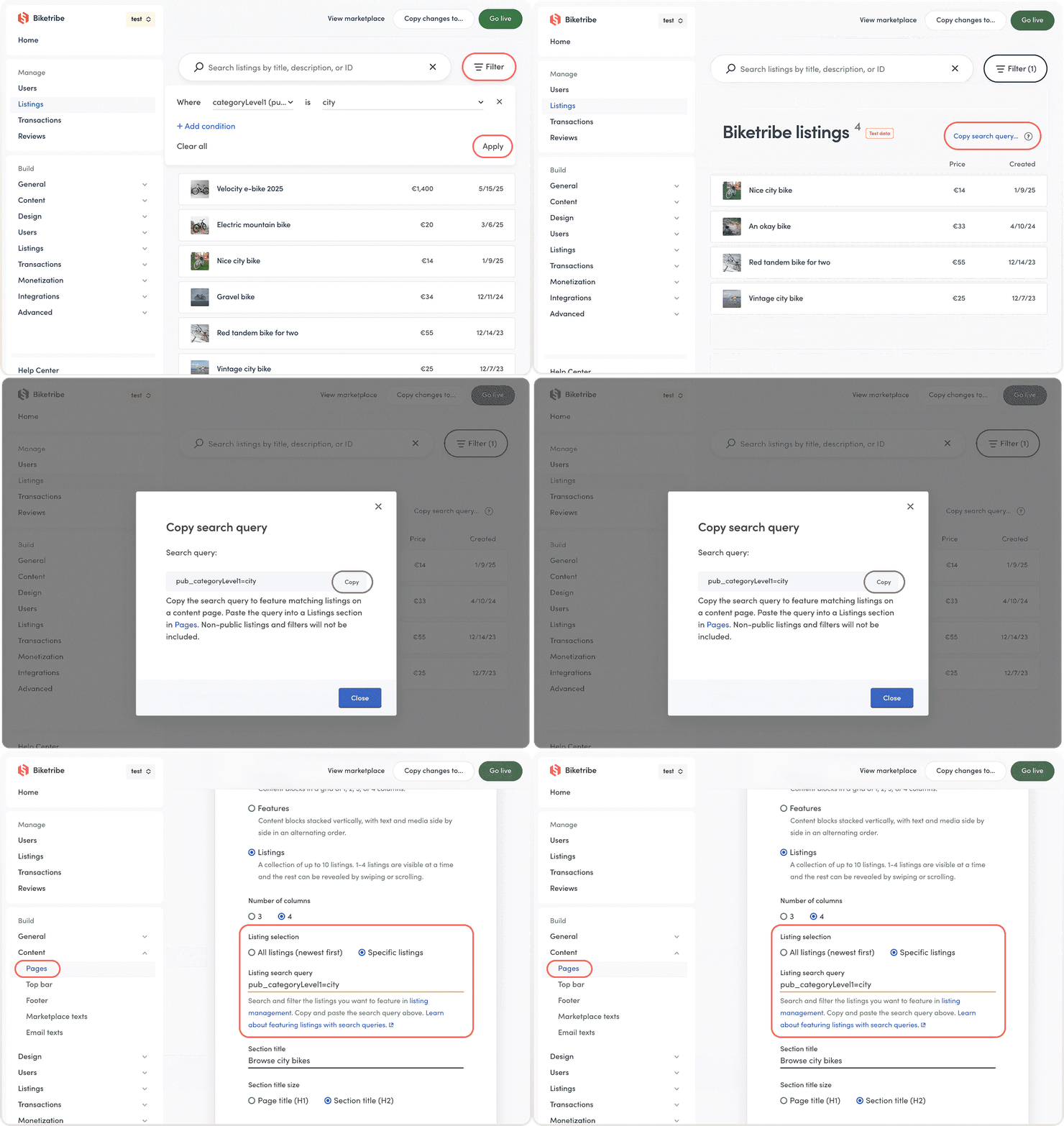
To achieve this, you’ll need to copy the search query from your listing management page to a content page. Here’s how:
- Go to listing management (if you’re in the middle of adding a Listings section, open listing management in a new tab).
- Use the filters to narrow down the listings you want to feature: for example, by category, listing type, price range, or any other public listing data. You can add multiple filters. Apply filters to the search. Learn more about filtering listings in Console.
- Click “Copy search query...” above the listing selection once you’ve applied the filters.
- Copy the search query from the modal that opens. It’s now saved on your clipboard.
- Navigate back to Pages and paste the query into the listing search query field.
- Save changes.
When you view the page, the section you added will display up to 10 listings that match your query.
Add more filters and sorting
In listing management, you can filter listings based on public data that belongs to specific listings such as its type, category, or price.
In addition, Sharetribe's search functionality has filters and sorting options that aren't available in listing management but can still be used to filter your featured listing sections. These are:
- Location
- Keywords
- Listing ID for hand-picked listings
- Sorting by price, rating, or listing creation date
For example, you might want a page that features listings in a specific city or listings below a certain price. Or handpick listings one by one entirely.
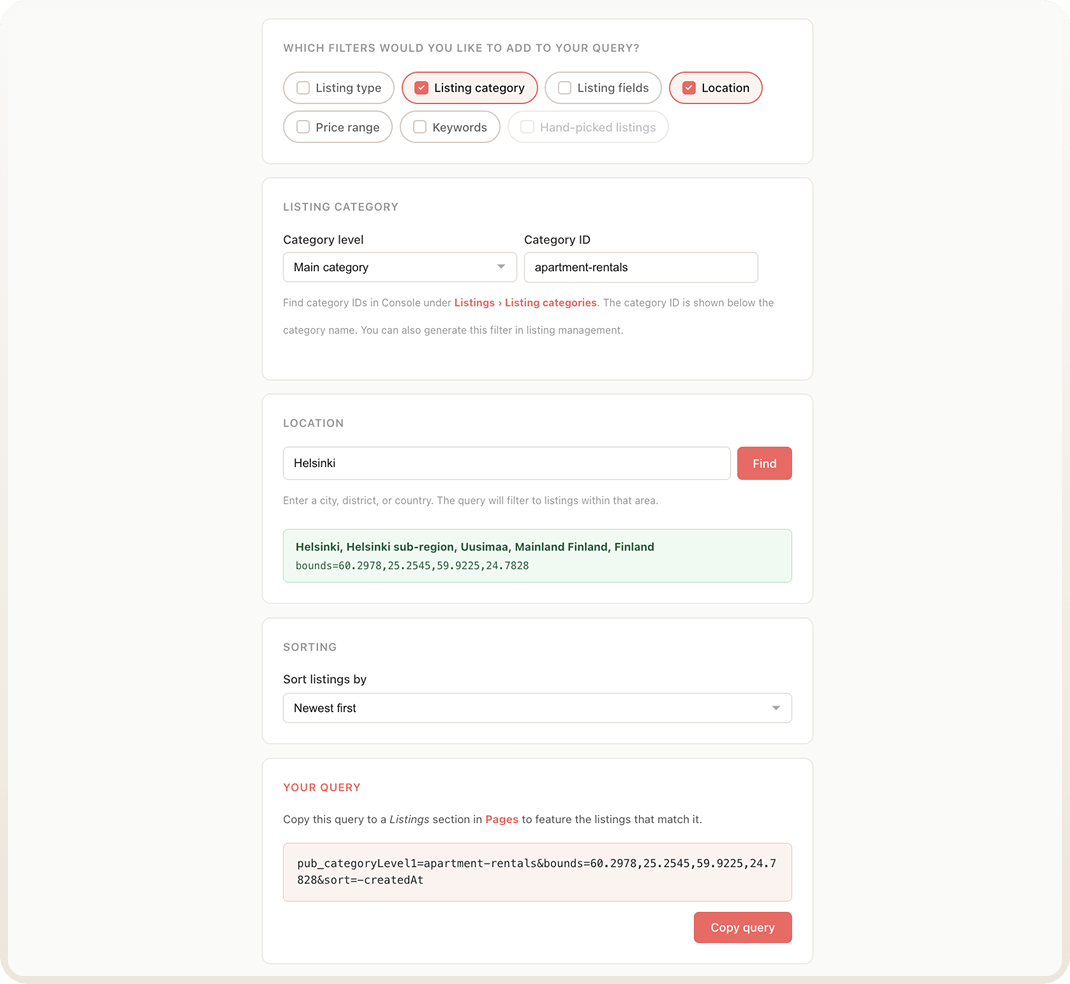
The easiest way to build the queries to feature the exact listings you want is to use our search query generator. For example, here’s the query you would get from the generator for featuring the latest listings in the category apartment rentals, located in Helsinki:
pub_categoryLevel1=apartment-rentals&bounds=60.2978,25.2545,59.9225,24.7828&sort=createdAt
We also have a guide on how to feature listings on your landing page, if you want to learn more.
What if no listings match your search query?
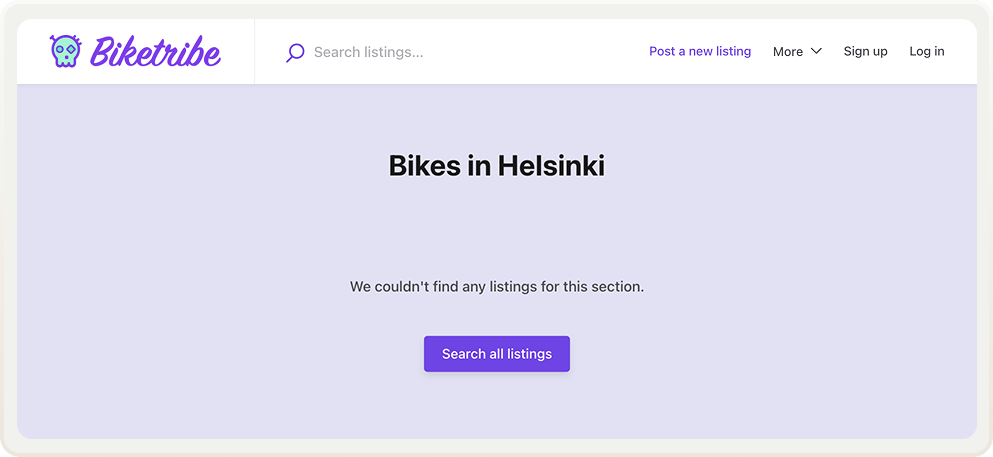
If no listings match your query, the section will show a short message instead. It's worth checking after publishing that listings appear as expected.
Keep in mind that listings can disappear from a section over time as they get sold out, closed, or deleted. On product marketplaces with unique or limited inventory, make sure to occasionally check that your featured listing sections still have supply. On rental marketplaces, this is less of a concern, since listings stay available for other bookings.
Where to use featured listings
Featured listings are a powerful tool for communicating the value of your marketplace. Here are three example use cases you could consider.
Help customers discover listings
Many marketplaces don't rely on a single search bar to drive discovery. Their landing pages offer multiple entry points: trending categories, curated collections, specific locations. For example, Etsy has landing pages where listings are featured based on category, price, or season.
Let listings speak for themselves
If your marketplace concept is immediately obvious to visitors, you don't need to use your landing page explaining it. Sometimes, real listings can be more compelling than describing your marketplace. For example, Airbnb's current landing page leads with groups of featured listings.
Build targeted pages for search discovery or ad campaigns
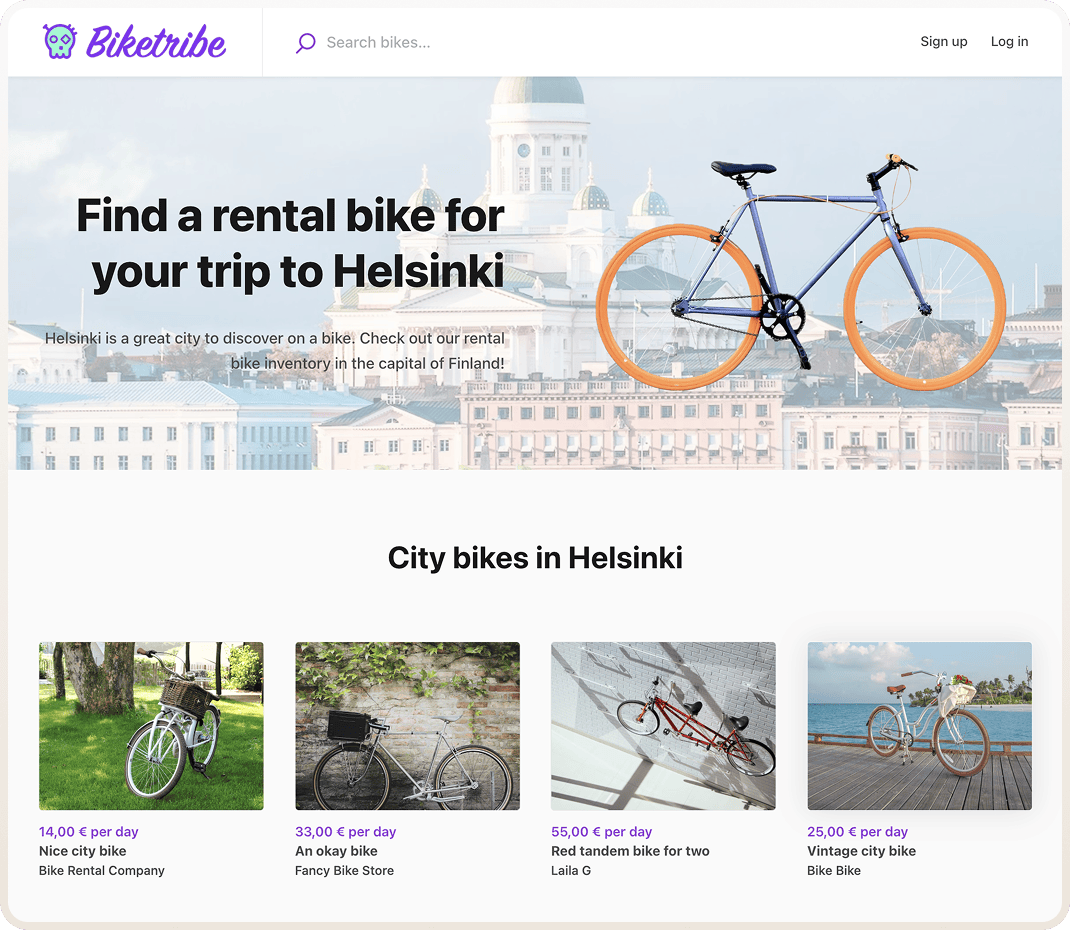
Some marketplaces benefit from targeted location- or category-specific landing pages, for example "Bike rentals in Helsinki" or "Design furniture under $200". You can now build these pages and populate them with relevant featured listings.
Update your marketplace texts
This release introduces new marketplace texts to Sharetribe. Copy the new marketplace texts below and paste them into your marketplace text editor.
"SectionListings.genericErrorTitle": "Content temporarily unavailable",
"SectionListings.noListingsFoundCTA": "Search all listings",
"SectionListings.noListingsFoundInfo": "We couldn't find any listings for this section.",
You can also find the new marketplace texts in the help center.
Ready to try it?
Feature your supply on your landing page, build campaigns around specific listings, or create targeted pages for listings in a specific location or category. Head to Pages and add a Listings section to your landing page or any other content page.
Coming up: we're working on adding no-code metadata fields, which will let you create hand-picked, curated collections of listings with even more ease. Stay tuned!
Start your 14-day free trial
Create a marketplace today!
- Launch quickly, without coding
- Extend infinitely
- Scale to any size
No credit card required