Build with AI
Sharetribe provides an AI assistant in our developer documentation. You can use the related MCP server to connect our documentation to your AI coding assistant.
In this guide, you will learn how to connect the documentation MCP server to your coding assistant.
Documentation MCP server
The documentation MCP server uses information from the same sources as the documentation AI assistant.
- Dev Docs
- API and SDK references
- Sharetribe Developer Blog
- Sharetribe’s Github repositories for the Sharetribe Web Template and Integration API examples
- selected articles from the Sharetribe Help Center
Available tools
The MCP server exposes one tool:
search_sharetribe_knowledge_sourcesThis tool initiates a search of the information sources listed above, and returns the most relevant content for the query. Results are returned as a structured list of objects with:
source_url– the URL of the original source.content– the chunk content in Markdown.
Setup
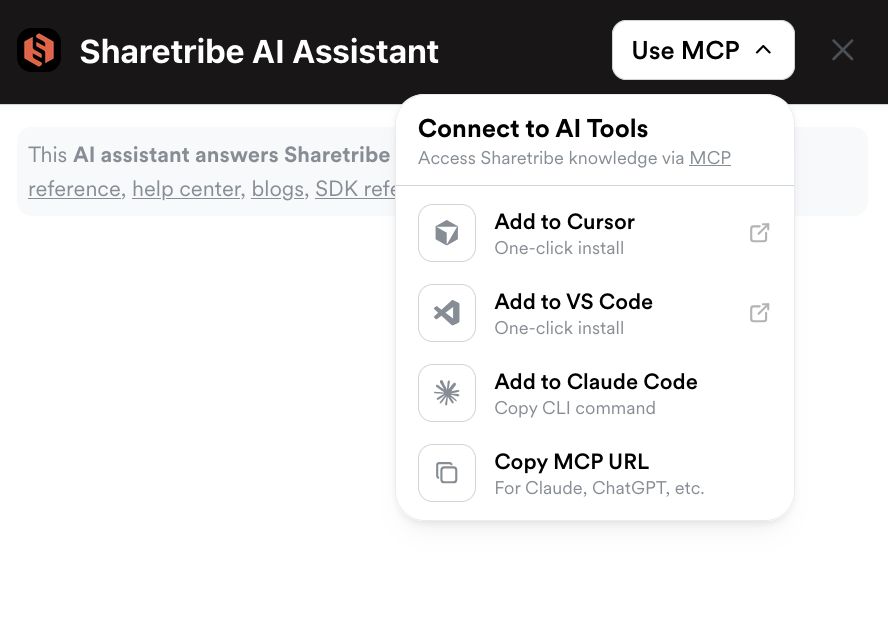
When you open the Sharetribe developer docs AI assistant, you can see a
button in the top right corner with the text “Use MCP”. Clicking this
button will show you shortcuts to add the documentation MCP server to
Cursor, VS Code, and Claude Code, as well as copy the MCP server URL
https://sharetribe.mcp.kapa.ai to use the MCP server in other tools.
Setup steps vary depending on which client you are using.
Claude Code
Run the following command in your terminal:
claude mcp add --transport http sharetribe-docs https://sharetribe.mcp.kapa.aiThen run the /mcp command in Claude Code, and follow the steps in your
browser to authenticate.
For more information, see the Claude Code MCP documentation .
And that’s it! You’re ready to use the Sharetribe documentation MCP server to speed up your AI assisted development!