Payments
Payments in Sharetribe are powered by Stripe, using Stripe Connect with Custom Accounts .
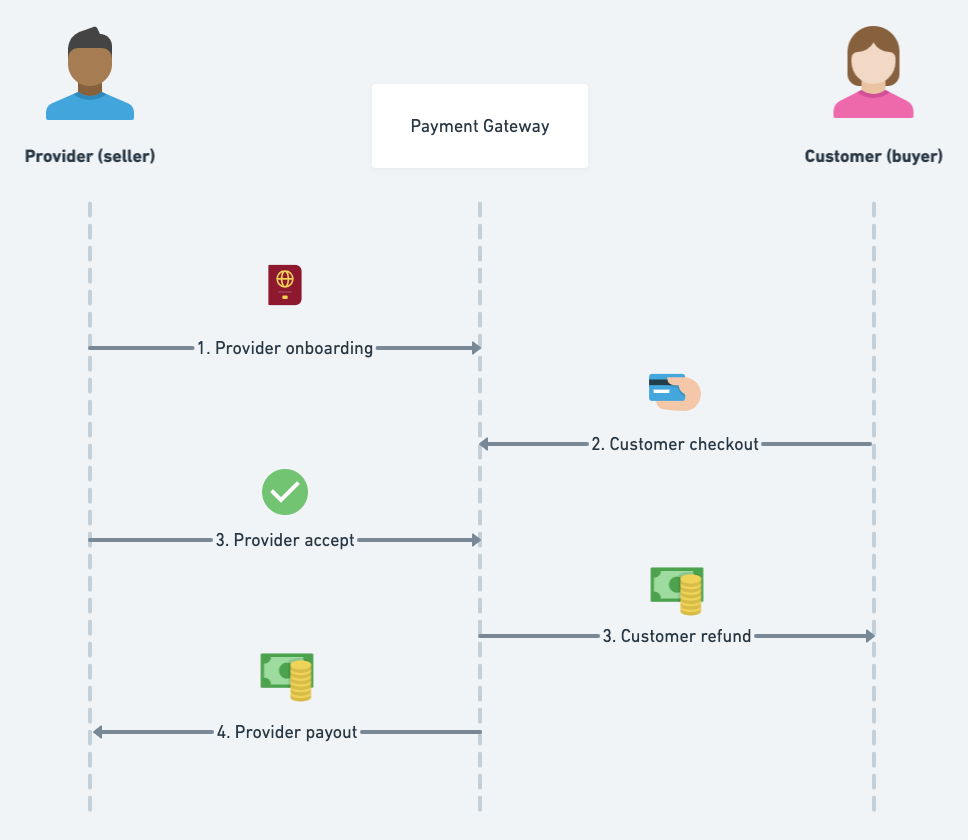
Payments with Stripe
All default transaction processes are built to support Stripe. The Sharetribe Web Template also comes with built-in support for payments with Stripe.
The built-in Stripe integration requires you to use:
- Stripe Connect with Custom accounts
- Destination charges
with the
on_behalf_ofparameter
Commissions are collected as application fees . Once the transaction is successfully over, the provider’s share is paid out to the bank account that the provider gave upon onboarding. The customer can check out using a payment card or another supported method, and they can also save their payment method for future use.
“What does “destination charge” mean?”
on_behalf_of destination charge means that when the
charge is created, the money goes directly to the provider’s Custom
Connect account in Stripe, and the provider’s information is shown on
the customer’s payment method receipt. This also means that a listing
cannot be booked or purchased if the provider has not onboarded to
Stripe, because the charge cannot be created in Stripe without the
provider’s Custom Connect account information.Default payment process with Stripe
Provider onboarding
In the Sharetribe default integration, users need to have a Stripe account with a bank account set up before others can initiate transactions with them successfully. This is done by creating a Stripe account for the authenticated user. The Sharetribe Web Template is configured to do this step out-of-the-box using Stripe Connect Onboarding .
To create the account, Stripe requires verification information from the provider, and the specific types of verification information depend on the provider’s country. You can check the verification requirements for your most likely marketplace provider demographics in Stripe’s own documentation .
Customer checkout
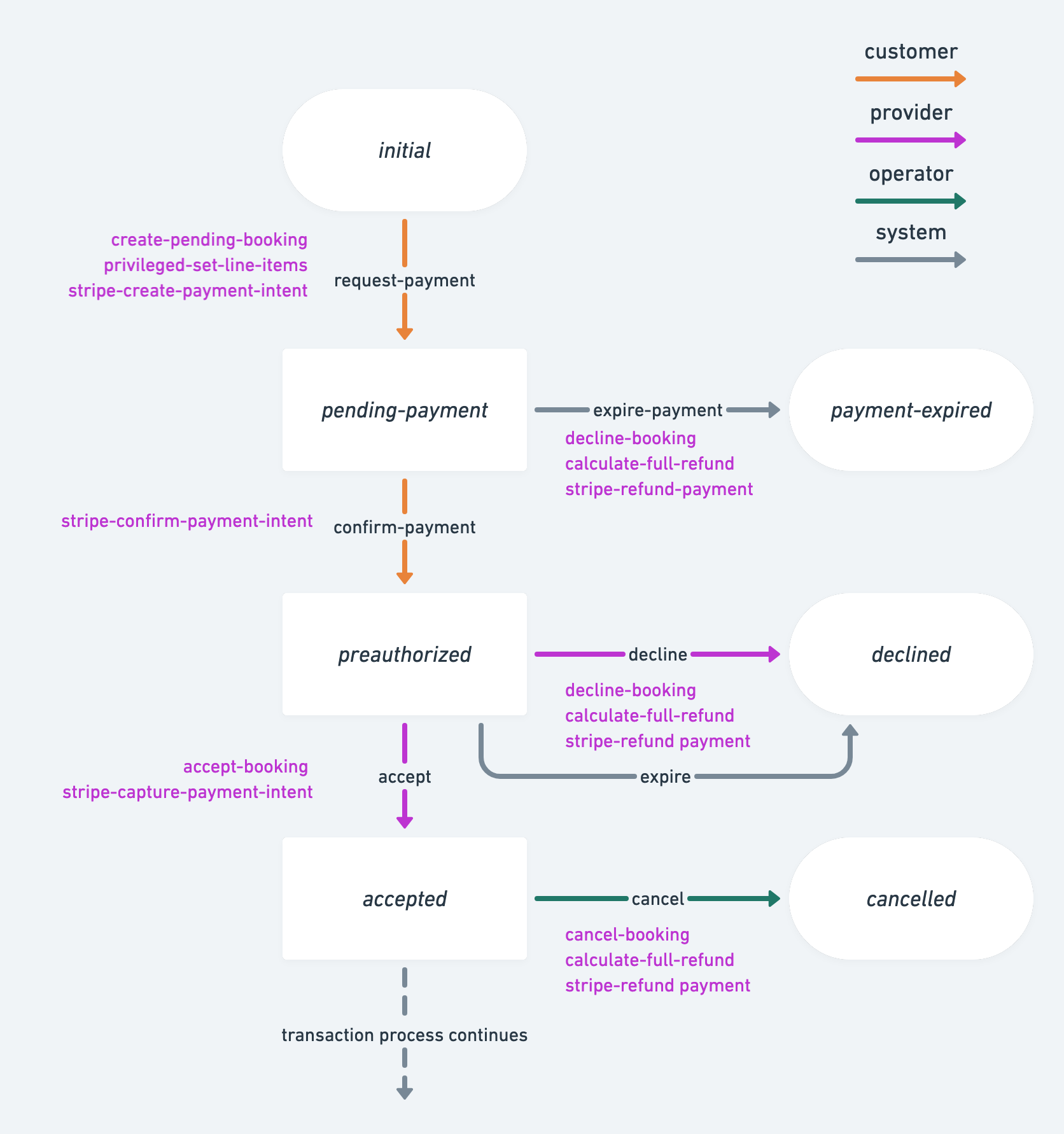
When the customer triggers a payment related transition in the Sharetribe default transaction processes, Sharetribe creates a PaymentIntent for the total price of the transaction. Once the PaymentIntent is confirmed, Stripe preauthorizes the sum from the customer’s payment method. In other words, even though the sum is not paid out from the customer’s card, it is reserved and not available to be used by the customer.
The preauthorization is valid for 7 days, after which the preauthorization is automatically released by Stripe, and the funds are again available to the customer.
Creating and confirming the PaymentIntent happen in the same transition in both the default purchase process and the default negotiation process.
Related Stripe actions:
Provider acceptance
The default purchase and negotiation processes in the Sharetribe Web Template uses an instant checkout, which means customer checkout and purchase acceptance are all triggered on the same customer action. In other words, provider acceptance is not necessary. However, it is possible to add the provider acceptance step to these processes as well.
In the default booking process, on the other hand, a provider has 6 days to accept the booking until it expires automatically. This timeline ensures that the Stripe preauthorization does not expire before the provider has the opportunity to accept or reject the booking. Once the provider accepts the booking, the PaymentIntent is captured and the transaction sum is transferred from the customer’s card to the provider’s Custom Connect account. If the transaction has any commissions, those are then paid from the provider’s Connect account to the platform’s account as an application fee .
Depending on how the transaction’s line items have been defined, the platform can take a commission of the price from either the provider, the customer, or both. The platform is also responsible for paying all Stripe fees related to the Custom Connect account usage, so the commissions must be defined to cover those expenses as well.
Related Stripe actions:
Customer refund
If the customer requests a refund for one reason or another, the operator can refund the PaymentIntent. The Sharetribe integration with Stripe only supports full refunds. (Handling partial refunds is discussed later in this article.) The default transaction process takes into account whether or not the PaymentIntent has already been captured from the customer’s account.
Related Stripe actions:
Provider payout
Once the order has completed successfully, the provider’s payout is paid to the bank account that is linked to their Custom Connect account.
It is important to note that Stripe can hold funds for up to 90 days (with some exceptions) . In other words, the payout must be triggered no more than 90 days after the PaymentIntent is created. This means that for booking or purchase times exceeding 90 days, the process needs to be modified.
Related Stripe actions:
Manual or automatic payout?
Modifications to the default processes
One of the strengths of Sharetribe is that you have complete control over the transaction process. In terms of payments, you can make parallel paths depending on your payment strategy, and you can fine-tune the timeline of different actions to suit your marketplace.
Even when using parallel paths, a single transaction can only ever have a single PaymentIntent associated with it. When customizing your transaction process, make sure that a single path can only process a single payment to avoid issues.
You can edit the transaction processes on your marketplace with Sharetribe CLI. If you use Sharetribe Web Template, you will also need to make some changes in the template to enable it to use a different process. If you do make changes to a transaction process when you already have transactions in your environment, it is good to note that a transaction will proceed with the transaction process it was initiated with, and changing the transaction process of a single transaction is not possible. You can see the transaction process related to each transaction in Sharetribe Console > Manage > Transactions.
The transaction process also controls the automatic email notifications sent at different stages of the transaction flow. When you make changes to the transaction process, be sure to also update the wording and logic of the notifications for a consistent user experience for your marketplace customers and providers.
Instant booking
As mentioned, both the default purchase process and the default
negotiation process combine the customer checkout and provider
acceptance steps into a single customer action. In other words, the
order is automatically accepted and paid as soon as the customer clicks
to pay for the transaction. The
example-processes Github repository
contains an example of a booking process called instant-booking that
you can use to implement a similar flow for bookings in Sharetribe Web
Template, as well as in any custom client application you may be using.
Automatic off-session payments
Another notable approach to modifying the payment timeline in Sharetribe is the off-session payment pattern. In an off-session payment, the customer checkout and provider acceptance happen when the customer books or purchases the listing, but the payment takes place at a later date. That way, customers can, for instance, book listings or purchase preorder products further in the future than the 90 day Stripe limitation, and they will be charged closer to the moment of receiving the product or service they purchased.
Negotiated payments
The negotiation transaction process is one of the default Sharetribe transaction processes, and it involves a negotiated payment. In this process, the listing price does not determine the price of the transaction, and instead the customer and provider negotiate the price between them. Once both the provider and customer have accepted an offer, the customer proceeds to make a payment based on the quote.
Payment methods and currencies
Sharetribe supports multiple payment methods as a part of its Stripe integration. The default payment method is a payment card, which is what the Sharetribe Web Template uses. However, you can enable other payment methods as well with moderate custom development work.
The user can save a default payment method in Sharetribe. If your marketplace uses the automatic off-session payment flow, the customer must save their payment method so that the transaction process can try to automatically charge them at the specified moment.
Sharetribe does not determine a currency for listings. However, each
listing needs to have a currency specified in its price attribute. The
value for price.amount is given in the minor unit of price.currency
(e.g. cents for USD). Sharetribe Console displays listing prices based
on the listing’s currency. The Sharetribe Web Template has a single
currency defined by default, to facilitate e.g. price filtering and
sorting.
As the transaction progresses, the payment intent is created and charged from the customer’s payment method in the listing’s currency, or alternatively the currency of the line items if different from the listing currency. The payout currency is determined by the provider’s bank account currency.
Stripe currency terminology
The settlement currency is the currency of the payout, i.e. the currency at which the provider’s payout is paid to their bank account. If the presentment currency differs from the settlement currency, Stripe converts the charge to the settlement currency.
See Stripe’s own documentation for country-specific details on supported currencies.
Sharetribe Web Template and Stripe
The Sharetribe Web Template comes with a working Stripe integration.
- Provider onboarding is handled with Stripe Connect Onboarding. A provider cannot create listings (i.e. receive money from customers) unless they have verified their identity with Stripe — this ensures that the platform is always KYC compliant.
- CheckoutPage.js and its subcomponent CheckoutPageWithPayment.js handle Stripe actions related to customer checkout in default processes. Creating and confirming the payment intent are handled with a single button click.
- The customer can save their payment method to Sharetribe either when making a payment on a transaction, or on a separate Payment Methods page.
Frequently asked questions about payments
Is Stripe supported in my country?
In order to use Stripe for your marketplace, your platform account needs to be in a Stripe-supported country. Refer to our Help Center for more information.
Can I add more Stripe countries to the Sharetribe Web Template?
The Sharetribe Web Template by default includes all countries that support the Sharetribe Stripe integration. In addition to being Stripe-supported in general, the country needs to support the following Stripe features:
- Custom account types
- Destination charges with the
on_behalf_ofAPI parameter - Application fees
- Manual payout setting
- 90-day holding period
We do regularly check whether support for new countries is added for Stripe Connect with Custom accounts and these specified requirements, and we add new supported countries when we become aware of them. If you notice that your country supports all of these attributes and is not included in the Stripe supported countries in Sharetribe Web Template, do reach out to us!
Known exceptions related to Brazil, India, and Hungary Stripe support
The Sharetribe Web Template does not support Brazil (BR), India (IN) and Hungary (HU), even though all three countries are mentioned as available Stripe countries in Stripe’s documentation . If you want to support one of these three regions, you will need to do a fair amount of customization on top of the default Sharetribe setup.
- The Sharetribe transaction engine uses manual payouts, which are not supported for Brazil and India .
- India has restrictions on cross-border payments .
- Stripe treats the Hungarian currency HUF as a zero-decimal currency for payouts . This means that even though the Sharetribe engine can create charges in two-decimal amounts (e.g. HUF 20.38), payouts can only be created in integer amounts evenly divisible by 100 (e.g. HUF 20.00). Additionally, if Stripe needs to do currency conversions from another currency to HUF, the resulting amount may have decimals which can cause the payout to fail.
I’m having problems with the Stripe integration
Sometimes it takes a while to get Stripe to work. Here are some ideas to troubleshoot the problem.
-
Double check that you have followed the Stripe setup instructions . Note that in your Dev and Test environments, you need to use the Stripe keys starting with
sk_testandpk_test, and you will also need to use Stripe’s test payout details and test payment methods with those test keys. In the Live environment with real payment methods, you will need to use the keys starting withsk_liveandpk_live. Also check that the keys you are using match the keys in Stripe Dashboard. You can “roll”, i.e. refresh the keys if necessary and enter the new keys — they will still be connected to the same Stripe platform account. -
If you get your Stripe integration working to the point that you get an error message from Stripe, it is useful to take a moment to check what the error code means . It is also often useful to put the error code into a search engine and check if someone has already solved a similar problem.
-
In case of payout problem issues, you can check out our article about Stripe payout issues for advice or ideas.
If nothing seems to work, you can always contact Sharetribe technical support through the chat widget in the Sharetribe Console or by email for further troubleshooting.
How to implement partial refunds?
The default Stripe integration in Sharetribe only supports full refunds. If you have a use case where you would need to implement partial refunds, here are some options you can consider. All of these require some degree of custom development effort.
Multiple transactions for one purchase
If you want to keep using the default Sharetribe Stripe integration, you can look into triggering two transactions in Sharetribe for a single purchase — one for the main price, and one for the refundable part of the price. Each transaction would have its own PaymentIntent towards Stripe, so you would need to implement separate transaction processes for each type of transaction to handle the PaymentIntents, and the payments would show up as two different charges on the customer’s account. Furthermore, you would need to coordinate commission amounts, as well as the possibility of a full refund, e.g. if the booking is cancelled by the provider for one reason or another. Also bear in mind that if you trigger two transactions for the same payment method in quick succession, some card providers may flag this as suspect behavior, so you will need to consider the timing of the transactions carefully.
Partial third party payment integration
In this option, you would use the Sharetribe default payment integration up to the point where the payment gets captured onto the provider’s Custom Connect account. You would then handle all payouts and refunds manually, i.e. outside the Sharetribe transaction process — either in Stripe Dashboard, or through the Stripe API with your own integration. This would require you to keep track of the correct sums to be paid out for each transaction yourself. This option poses the risk of causing payout issues for completely unrelated transactions; Stripe does not separate funds by PaymentIntent, so a miscalculated excessive refund on a transaction between provider A and customer B may cause payout to fail for customer C on a different transaction. You can read more on payout issues on manual refunds to figure out what you would need to consider to implement this option successfully.
Full third party payment integration
Of course, you can create a fully separate third party payment integration to handle creating and capturing the payments as well as managing payouts and refunds. This gives you the greatest flexibility with your setup, and conversely it requires more customization and development. You can refer to our high-level instructions on integrating a 3rd-party payment gateway to find out whether this option would best suit your needs.
If you are contemplating partial refunds for your marketplace, you can also contact Sharetribe technical support through the chat widget in your Sharetribe Console or by email. Let us know your specific use case, and we may be able to recommend some avenues for you to explore.
Can I use Sharetribe and not use Stripe?
You can absolutely use Sharetribe without using Stripe. You might not use payments at all in your marketplace, or your platform operates in a non–Stripe supported country, or you may have some other reason.
Using the Sharetribe backend without the Stripe integration is fairly
simple. You will need to remove references to all
Stripe-related transaction process actions
from your transaction processes, and avoid using
Stripe-related endpoints .
For clarity, all references to Stripe’s backend elements (endpoints,
transaction process actions etc.) are named with the prefix stripe.
If you want to modify your template to work without Stripe, the effort is more extensive, since each template is built around a logic that uses Stripe actions and endpoints. You can use this article as your starting point.
When removing the Stripe integration, you will want to consider whether or not you want to implement some other payment gateway in your marketplace to handle payments. You can refer to our high-level instructions on how to integrate a 3rd-party payment gateway when making the decision and when implementing any changes.