[Developer Blog](/developer-blog/)
# Viewing cart items
Different e-commerce sites have a variety of ways to view the items in your cart. In this blog series, we are diving into the ins and outs of building a multi-vendor shopping cart with single-vendor checkout using the Sharetribe Developer Platform.
Mar 4, 2024
[](/author/sari-saariaho/)
Sari Saariaho
Developer Advocacy Guild Lead
**Note: The implementation in this article is built on top of [Sharetribe Web Template v4.1.0](https://github.com/sharetribe/web-template/releases/tag/v4.1.0), so if you are working on a later version, you may need to make some adjustments.**
Different e-commerce sites have a variety of ways to view the items in your cart. Some stores have a modal overlay, some stores might have a side panel sliding into and out of view, and some stores have a dedicated page.
In this guide, we will create a dedicated page into the Sharetribe Web Template where customers can view their cart items. As we are working with single vendor checkout, we will show carts grouped by provider, so that we can eventually show an order breakdown with prices, as well as a “Buy now” button for the specified provider’s cart. We will also add the page to our navigation.
We need to make the following changes:
* Add a new container, _CartPage_, to the application
* Add a _CartCard_ component for viewing individual items
* Add a _CartDeliveryForm_ component for selecting a delivery method for the cart order
* Connect the _CartPage_ container to application state, routing, and navigation
* Remove the _toggleCart_ thunk from _ListingPage.duck.js_ and use the _CartPage.duck.js_ _toggleCart_ thunk instead on _ListingPageCarousel.js_
You can find all code examples used in this guide in [this Gist](https://gist.github.com/SariSaar/3fc9f88986526b537f5512ba0d8b6414).
This guide continues from the previous article on [adding items to cart](/developer-blog/adding-items-to-cart/) – if you have not already, read it first!
## Add CartPage.js and CartPage.duck.js to your application
---
To get started, let’s add the following directories and files to your application:
* Add new directory _CartPage_ in _src/containers_
* In the _CartPage_ directory, add a new directory _CartCard_
* In the _CartCard_ directory, add _[CartCard.js](https://gist.github.com/SariSaar/3fc9f88986526b537f5512ba0d8b6414#file-cartcard-js)_ and _[CartCard.module.css](https://gist.github.com/SariSaar/3fc9f88986526b537f5512ba0d8b6414#file-cartcard-module-css)_
* In the _CartPage_ directory, add _[CartDeliveryForm.js](https://gist.github.com/SariSaar/3fc9f88986526b537f5512ba0d8b6414#file-cartdeliveryform-js)_, _[CartPage.duck.js](https://gist.github.com/SariSaar/3fc9f88986526b537f5512ba0d8b6414#file-cartpage-duck-js), [CartPage.js](https://gist.github.com/SariSaar/3fc9f88986526b537f5512ba0d8b6414#file-cartpage-js),_ and _[CartPage.module.css](https://gist.github.com/SariSaar/3fc9f88986526b537f5512ba0d8b6414#file-cartpage-module-css)_
src / containers
├── CartPage
├── CartCard
│ ├── CartCard.js
│ └── CartCard.module.css
├── CartDeliveryForm.js
├── CartPage.duck.js
├── CartPage.js
└── CartPage.module.css
### What do these files do?
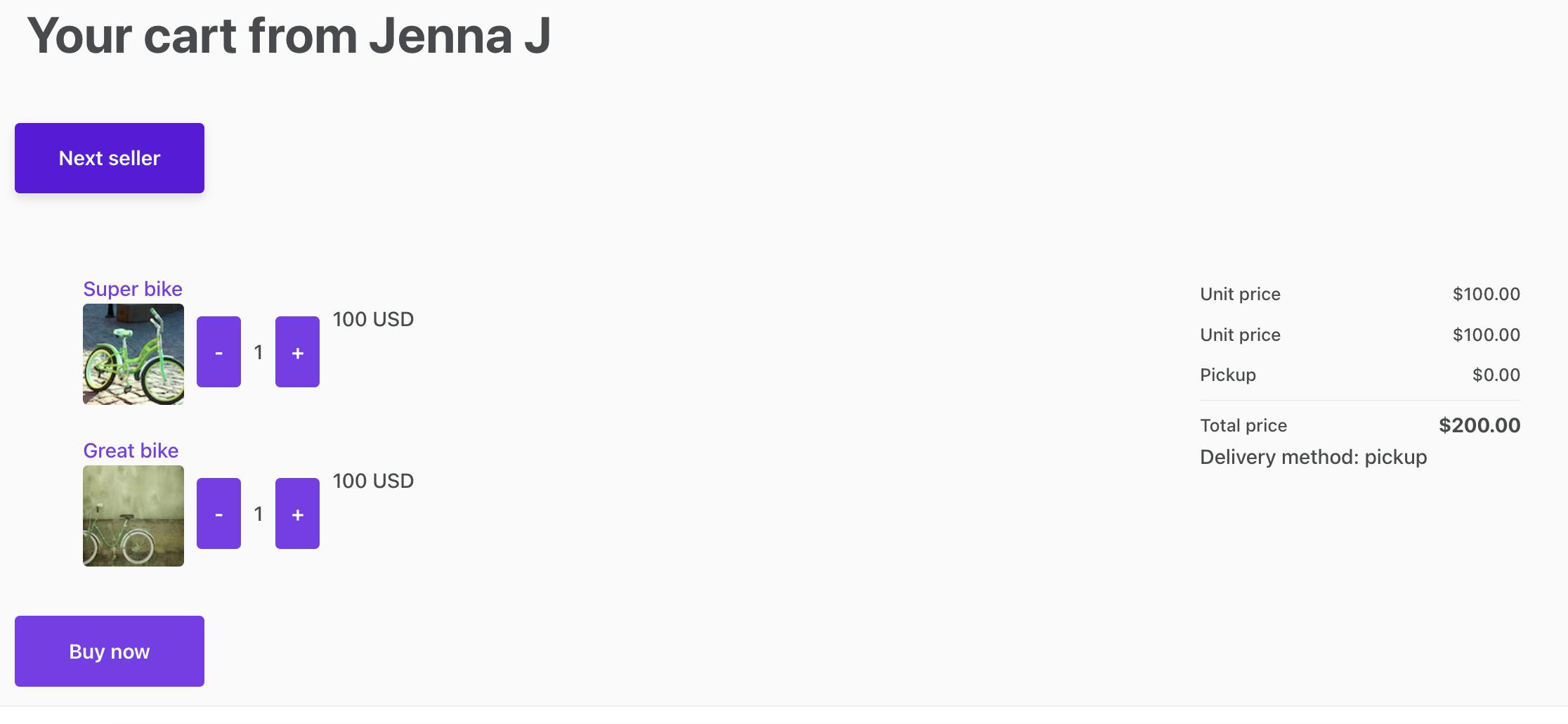
**CartPage.js** shows the listings you have selected from a specific seller.
* If you have listings in your cart from multiple sellers, you can see a “Next seller” button.
* You can also see a line item breakdown and a “Buy now” button, although these won’t show up until you have updated your line item calculation – we will do this in a future blog post.
* _CartPage_ also checks the delivery options for the listings in the author’s cart. If only one delivery option is available across the listings – for example three listings all allow pickup but only one allows shipping – then the shared one is automatically saved to the cart:
{
"63e3a8f4-84df-4dd7-995b-a876fec5a3e9": {
"65ca03f1-9331-429a-b1f5-839bea317bf5": {
"count": 2
},
"deliveryMethod": "pickup"
}
}
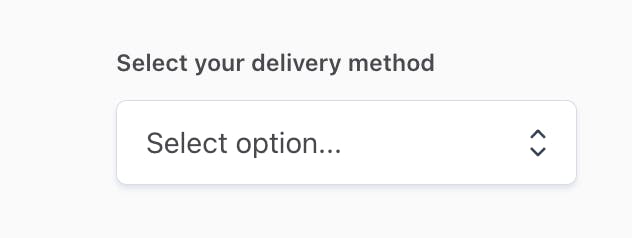
* If all listings in the cart allow both pickup and shipping, the page shows _CartDeliveryForm_, and only saves the delivery information after the user has made a selection with the form.
**CartPage.duck.js** contains all the state management and SDK calls you need to make related to shopping cart handling in the application. They are connected to _CartPage.js_ with _mapStateToProps_ and _mapDispatchToProps_.
**CartPage.module.css** contains styling for the _CartPage_ component.
**CartDeliveryForm.js** renders the delivery method selection input for carts that have both shipping and pickup available.
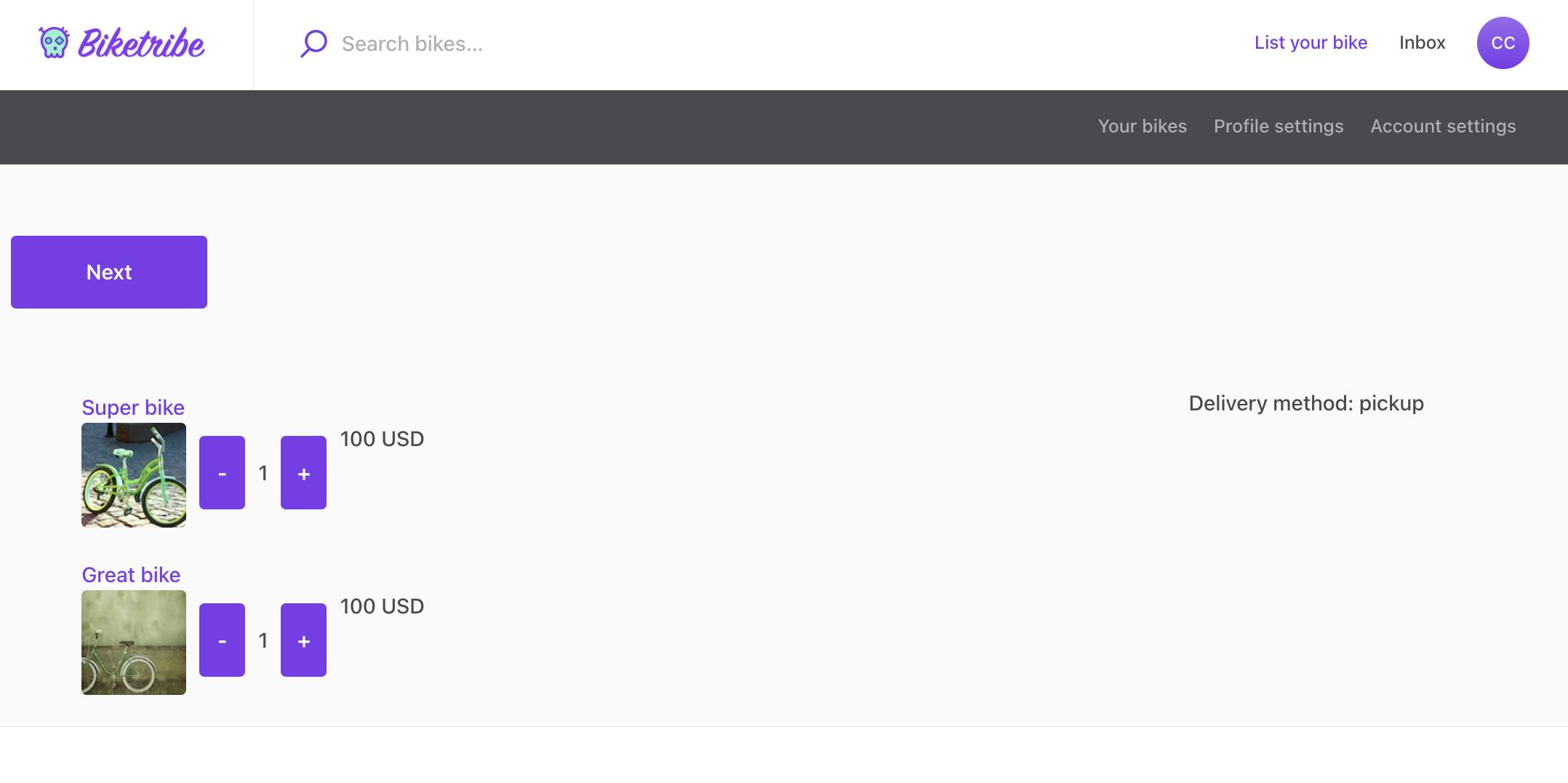
**CartCard.js** contains the details of a single listing in the cart, as well as an _AddToCartButton_ to increase or decrease the number of that specific item in the cart

**CartCard.module.css** contains styling for the _CartCard_ component.
## Connect the CartPage container to the rest of the application
---
Merely adding the files in your codebase is not enough to take the _CartPage_ container into use. In addition, you will need to make the following changes:
* Import and export _CartPage_ in _src/containers/reducers.js_
import CartPage from './CartPage/CartPage.duck';
...
export {
CartPage,
...
* Import the cart page loader, and add it to _getPageDataLoadingAPI_, in _src/containers/pageDataLoadingAPI.js_
import { loadData as CartPageLoader } from './CartPage/CartPage.duck';…
const getPageDataLoadingAPI = () => {
return {
...
CartPage: {
loadData: CartPageLoader,
},
...
* Add an import and a route for _CartPage_ in _src/routing/routeConfiguration.js_
const CartPage = loadable(() => import(/* webpackChunkName: "CartPage" */ '../containers/CartPage/CartPage'));
...
{
path: '/cart',
name: 'CartPage',
auth: true,
authPage: 'LoginPage',
component: CartPage,
loadData: pageDataLoadingAPI.CartPage.loadData,
},
...
At this point, you can also add the necessary marketplace texts used in this guide into your _en.json_ file or your Console Marketplace texts editor.
"CartPage.deliveryShipping": "Delivery method: shipping",
"CartPage.deliveryPickup": "Delivery method: pickup",
"CartPage.deliveryNotSet": "Delivery method not set. Please contact provider.",
"CartPage.nextAuthor": "Next",
"CartPage.optionSelect": "Select option...",
"CartPage.optionShipping": "Shipping",
"CartPage.optionPickup": "Pickup",
"CartPage.pageTitleAuthor": "Your cart from {name}",
"CartPage.pageTitleNoItems": "No items in cart",
"CartPage.selectDeliveryMethod": "Select your delivery method",
"TopbarDesktop.cart": "Cart",
"TopbarDesktop.yourCartLink": "Cart",
"TopbarMobileMenu.cartLink": "Cart",
"UserNav.cart": "Cart"
Now, if you are running the application with _yarn run dev_ in localhost:3000 and visit localhost:3000/cart, you should see the cart page in action.
Note that at this point you will see an error in dev tools console: “ReferenceError: cartTransactionLineItems is not defined”. This is because we have not yet added line item handling to the application, so the import from _/util/api_ to _CartPage.duck.js_ is commented out. We will add the line item handling and deal with the error in a future blog post.
## Add cart page to app navigation
---
Now that the cart page exists, let’s add it to the app navigation. We will add a cart navigation link into three places:
* In the Top Bar, next to the Inbox link
* In the profile menu that opens when a user clicks on their profile image
* In the user navigation bar, when the user is viewing pages available from the profile menu
### Add cart link to top bar
To show a cart link in the top bar, let’s add the following elements in _src/containers/TopbarContainer/Topbar/TopbarDesktop/TopbarDesktop.js._
src / containers
├── TopbarContainer
├── Topbar
├── TopbarDesktop
├── TopbarDesktop.js
First, create a _CartLink_ component alongside the other link components.
const CartLink = ({ notificationCount }) => {
const notificationDot = notificationCount > 0 ? : null;
return (
{notificationDot}
);
};
Then, inside the actual _TopbarDesktop_ component in the same file, parse the user’s cart from their private data and use the _CartLink_ component when necessary.
const { cart } = currentUser?.attributes.profile.privateData || {};
const cartCount = cart && Object.keys(cart).length || 0
const cartLinkMaybe = authenticatedOnClientSide ? (
) : null;
...
return (
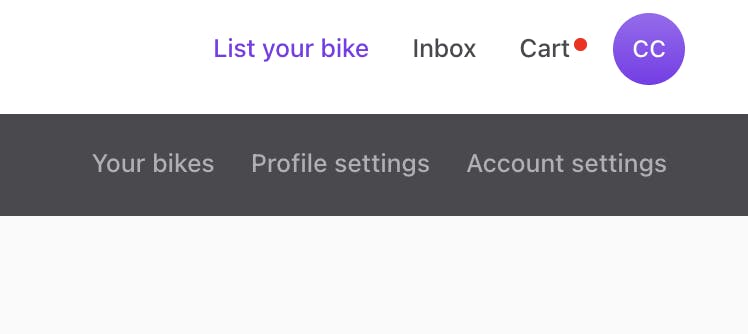
Now, you can see the cart link in the top bar:
### Add cart link to profile menu
In the same _TopbarDesktop.js_ file, add a new _MenuItem_ to _ProfileMenu_:
\`\`\`
const ProfileMenu = ({ currentPage, currentUser, onLogout }) => {
...
return (
);
};
\`\`\`
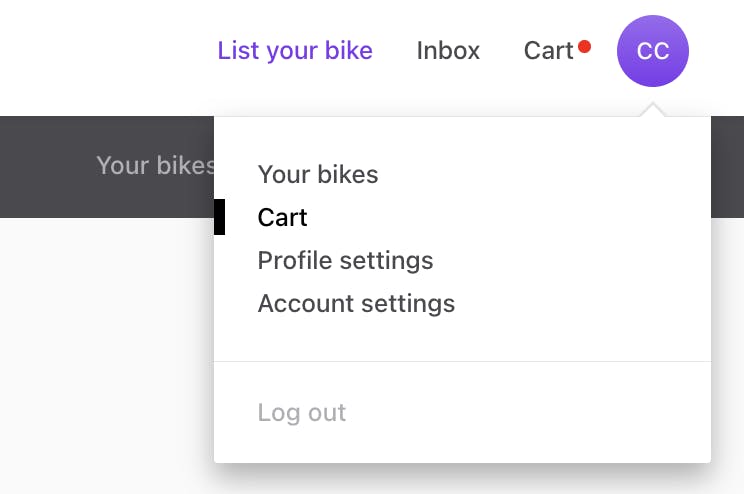
Now, when you click open the profile menu, you can see a link to the cart page:
### Add cart link to navigation bar
Finally, let’s add the cart page link to the navigation bar that’s visible from the profile menu pages. Add the following snippet to _src/components/UserNav/UserNav.js_ after the _ManageListingsPage_ tab:
src / components
├── UserNav
├── UserNav.js
const tabs = [
{
...
},
{
text: ,
selected: currentPage === 'CartPage',
linkProps: {
name: 'CartPage',
},
},
...
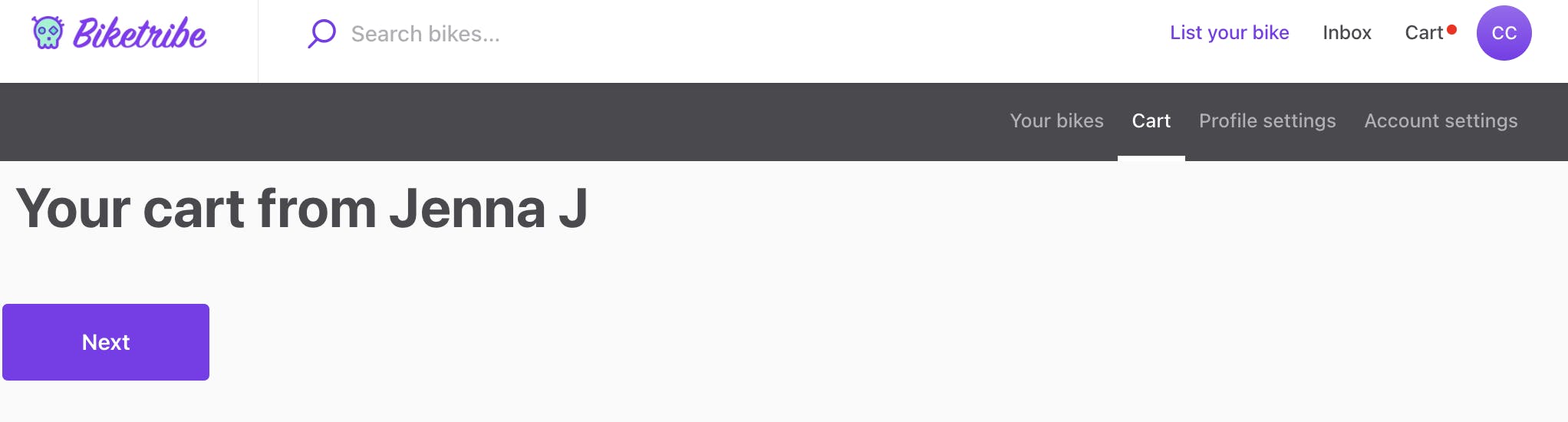
Now you can see the cart link also in the navigation bar:
## Remove toggleCart from ListingPage.duck.js and update the import in ListingPageCarousel.js
---
In the [previous part of this series](/developer-blog/adding-items-to-cart/), we added a _toggleCart_ action in _ListingPage.duck.js_, and imported it to _ListingPageCarousel.js_ to use in _AddToCartButton_ functionality. The _CartPage.duck.js_ file we added to the component has a slightly enhanced version of _toggleCart_, so we can use that instead.
Remove the following functions from _ListingPage.duck.js_:
* toggleCart
* listingIsInCart
* getNewCart
Then, on _ListingPageCarousel.js_, remove _toggleCart_ from the _ListingPage.duck.js_ import. Add this row to the page:
import { toggleCart } from '../CartPage/CartPage.duck.js';
Now, you can navigate to a product listing’s page, and verify that the _AddToCartButton_ still works.
## Summary
---
In this guide, we made the following changes:
* We added a new container, _CartPage_, to the application
* We added a _CartCard_ component for viewing individual items
* We added a _CartDeliveryForm_ component for selecting a delivery method for the cart order
* We connected the _CartPage_ container to application state, routing, and navigation
* We removed the _toggleCart_ thunk from _ListingPage.duck.js_ and use the _CartPage.duck.js_ _toggleCart_ thunk instead on _ListingPageCarousel.js_
In the next part of this series, we will [add the correct price calculations for our shopping cart](/developer-blog/calculating-shopping-cart-price/)!
Photo by [Alexas\_Fotos](https://unsplash.com/@alexas%5Ffotos) on [Unsplash](https://unsplash.com/photos/green-leaves-on-shopping-cart-y8Uasn7yiWY)
## You might also like...
[Building a shopping cart for a Sharetribe marketplace](/developer-blog/shopping-cart-introduction/)[Adding items to cart](/developer-blog/adding-items-to-cart/)[Calculating shopping cart price](/developer-blog/calculating-shopping-cart-price/)
## Liked this? Get email updates on new Sharetribe Developer Blog posts.
[Subscribe](#subscribe-dev-blog)